<?xml version="1.0" encoding="utf-8"?><feed xmlns="http://www.w3.org/2005/Atom" ><generator uri="https://jekyllrb.com/" version="3.10.0">Jekyll</generator><link href="https://www.basbroek.nl/feed.xml" rel="self" type="application/atom+xml" /><link href="https://www.basbroek.nl/" rel="alternate" type="text/html" /><updated>2026-01-10T15:20:16+00:00</updated><id>https://www.basbroek.nl/feed.xml</id><title type="html">Bas’ Blog</title><subtitle></subtitle><entry><title type="html">VoiceOver on macOS: First Time, Huh?</title><link href="https://www.basbroek.nl/macos-voiceover-first-time-huh" rel="alternate" type="text/html" title="VoiceOver on macOS: First Time, Huh?" /><published>2024-12-19T00:00:00+00:00</published><updated>2024-12-19T00:00:00+00:00</updated><id>https://www.basbroek.nl/macos-voiceover-first-time-huh</id><content type="html" xml:base="https://www.basbroek.nl/macos-voiceover-first-time-huh"><![CDATA[<p>You may have used or tried out using a screen reader on a mobile device, but
what about on a desktop?</p>

<!--more-->

<p>I’m going to be honest — the first time I used VoiceOver on macOS, I felt
overwhelmed and felt like there was quite the learning curve. But a lot of that
was due to me not having taken the time to <em>think</em> about screen readers in an
environment away from touch screen, and I had many assumptions about that being
“the way” to navigate using a screen reader.</p>

<h1 id="humble-beginnings">Humble Beginnings</h1>

<p>No touch screen it is. On desktop, the keyboard is going to be our main form of
input.</p>

<p>To turn on VoiceOver, use ⌘ (command) + F5, or ⌘ + triple-click Touch ID.
Do the same to turn it off again.</p>

<p>At the core of VoiceOver on macOS, you have what’s called the VoiceOver
modifier. By default, it’s set to ⌃⌥ (control + option) <em>or</em> ⇪ (Caps Lock).</p>

<p>Like you’d use control, option, command etc. on their own or in combinations
for keyboard shortcuts, you use the VoiceOver modifier together with other keys,
like arrows, to navigate. Just like keyboard shortcuts!</p>

<hr />
<p><br />
<em>You’ll often see “VoiceOver modifier” be referred to simply as “VO”. “VO right
arrow”, then, may refer to using your VoiceOver modifier keys together with
right arrow.</em></p>

<hr />
<p><br />
Where on touch screens, we use a single-finger right swipe to navigate to an
item on the right, on macOS we’d do that with VO + right arrow.</p>

<p>To navigate to an item on the left, use VO + left arrow.</p>

<h1 id="hierarchy">Hierarchy</h1>

<p>On touch screen devices, you’re likely used to a flat navigation style. This
is the default. There is also an option for <em>grouped</em> navigation, which
navigates between <em>groups</em> (I <em>think</em> this translates to navigating by
<em>container</em>), then requires a two-finger swipe right to “enter” the group.</p>

<p>A two-finger swipe left exits the group.</p>

<p>On macOS, the grouping behavior by default is similar to <em>grouped</em>. What that
means in practice is you’ll have to enter and exit groups, like scroll views
by default.</p>

<hr />
<p><br />
<em>This is also why it is important to label your scoll views! The Messages app’s
detail view is labeled “Conversations”, for example.</em></p>

<hr />
<p><br />
To enter a group, use VO + ⇧ (shift) + down arrow. Exiting a group? VO + ⇧ + up
arrow. But you guessed that.</p>

<p>Activating elements like a button is done using VO + space.</p>

<h1 id="whats-next">What’s Next</h1>

<p>This should allow you to get started using VoiceOver on macOS. But there’s more!
Way more. Rotors and Commands are just two of them.</p>

<p>Furthermore, VoiceOver Utility is your one-shop-stop to set up VoiceOver to your
liking, from the Voice used, to the Caption Panel showing, to the Braille Panel,
to setting up VoiceOver to use with a trackpad.</p>

<p>Go and try it out — I’d love to hear how you get on!</p>]]></content><author><name></name></author><category term="accessibility" /><category term="macos" /><category term="voiceover" /><summary type="html"><![CDATA[You may have used or tried out using a screen reader on a mobile device, but what about on a desktop?]]></summary></entry><entry><title type="html">Making Accessibility Accessible</title><link href="https://www.basbroek.nl/making-accessibility-acceessible" rel="alternate" type="text/html" title="Making Accessibility Accessible" /><published>2024-10-22T00:00:00+00:00</published><updated>2024-10-22T00:00:00+00:00</updated><id>https://www.basbroek.nl/making-accessibility-acceessible</id><content type="html" xml:base="https://www.basbroek.nl/making-accessibility-acceessible"><![CDATA[<p>In ‘Building an Accessibility Culture, One Step at a Time’, a presentation I
recently gave at <a href="https://swiftconnection.io">Swift Connection</a> and
<a href="https://swiftleeds.co.uk">SwiftLeeds</a>, I spoke about “making accessibility
accessible”. What does it mean, and how can we accomplish this?</p>

<!--more-->

<h1 id="everything-is-accessibility">Everything is Accessibility</h1>

<p>Before we look into how we can approach working on accessibility, I want to look
at what constitutes accessibility. And what does not.</p>

<p>The bad thing: that’s not a straightforward question to answer. The good thing:
the fact it’s not straightforward to answer is actually a good problem to have.</p>

<p>When thinking of assistive technology like screen readers or braille input and
output, I assume it’s straightforward we’re talking about ‘accessibility’.</p>

<p>When we talk about voice assistants like Siri, or dark mode, or haptics (which
in SwiftUI are now a broader “sensory feedback” type that extends beyond
devices with a haptic engine), or even App Intents that expose app information
to the system… are those accessibility?</p>

<p>Some might say yes to all of them, or a hesitant yes. Or perhaps “no” to some.
And that’s fair — there’s no right answer here, I believe. But in essence, it
<em>does</em> all impact the eventual accessibility of your product for a wide(r) range
of users.</p>

<p>Supporting these kinds of functionality makes better products for everyone.</p>

<p>And yes — supporting all of this is a <em>lot</em> of work. But we don’t have to do it
all in one go. We can start with dark mode and sensory feedback. Labels and
traits to improve the VoiceOver experience. And then we can expand on that in
the future to improve the experience for Voice Control users, building on top
of the labels and traits we implemented for VoiceOver.</p>

<h1 id="reasoning-about-assistive-technology">Reasoning about Assistive Technology</h1>

<p>“This all sounds great!”, you might think. “But now what?”</p>

<p>I’ve heard this a lot. And it’s a fair question. Especially in accessibility,
I’ve come to the realization that part of what makes it difficult to support is
that a lot of people don’t have a clear picture of what accessibility entails.
Or, said another way, “don’t know what they don’t know”.</p>

<p>This means there’s a barrier to overcome. Let’s look at some ways that make it
easier to overcome said barrier.</p>

<h4 id="navigating-by-voice-voice-control">Navigating by Voice (Voice Control)</h4>

<p>Using Voice Control, we can navigate a device by voice. Users with motor
difficulties might rely on this assistive technology, but beyond that — it can
help us get a sense of certain<sup id="fnref:1" role="doc-noteref"><a href="#fn:1" class="footnote" rel="footnote">1</a></sup> labels within our product.</p>

<p>Seeing some of these labels might already help us get a first insight into
issues. If any of the labels don’t make sense, or would be hard to read out
loud, that would be an indication we can improve things.</p>

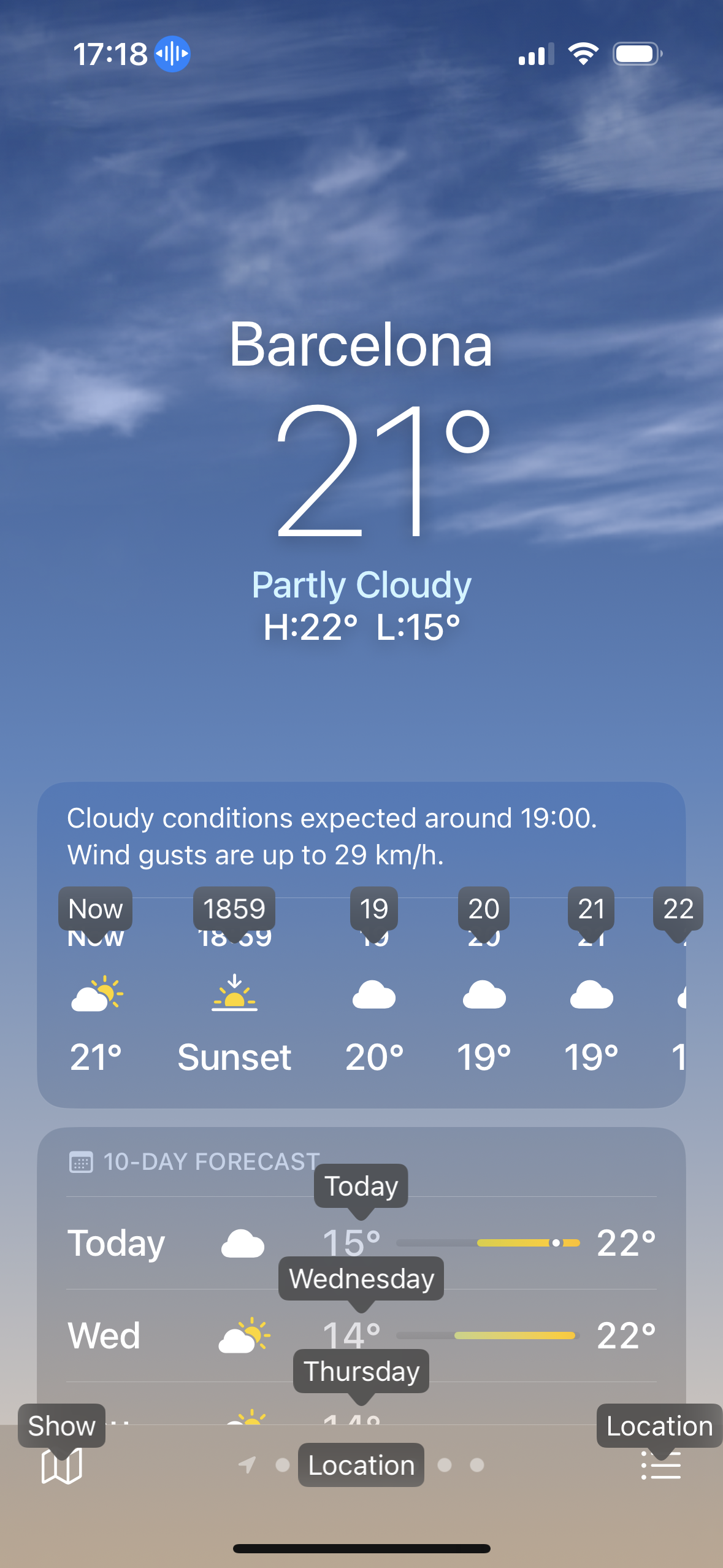
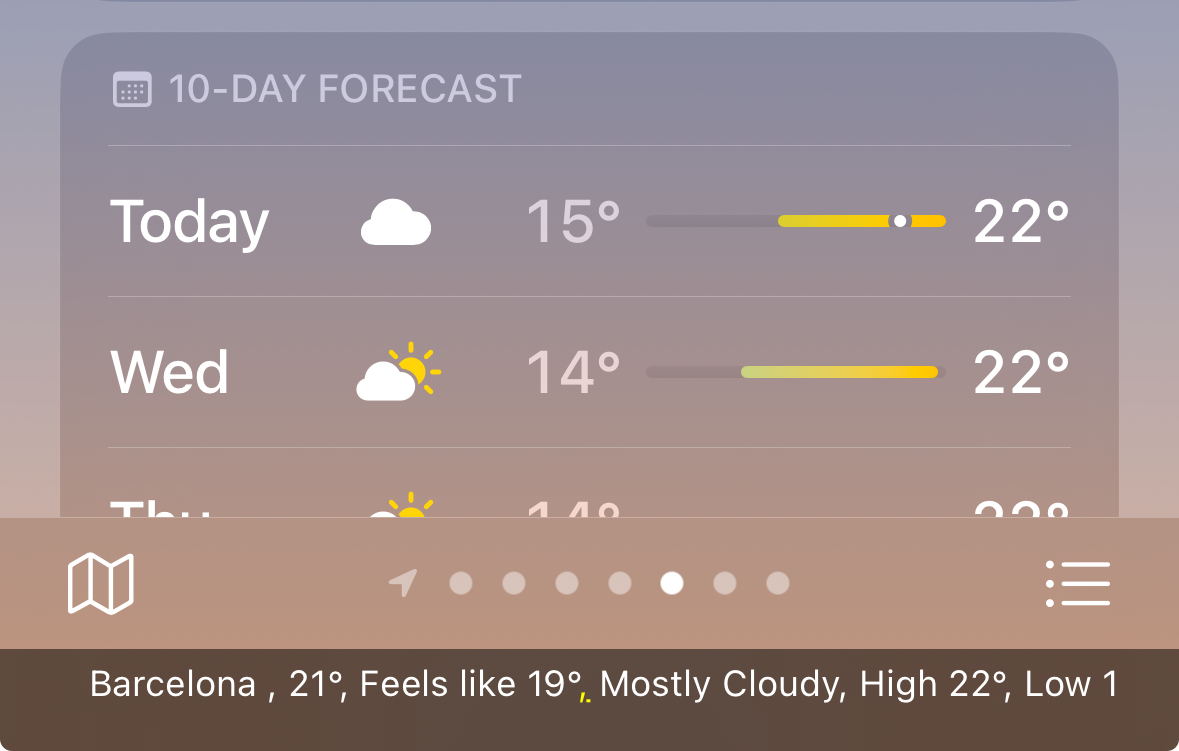
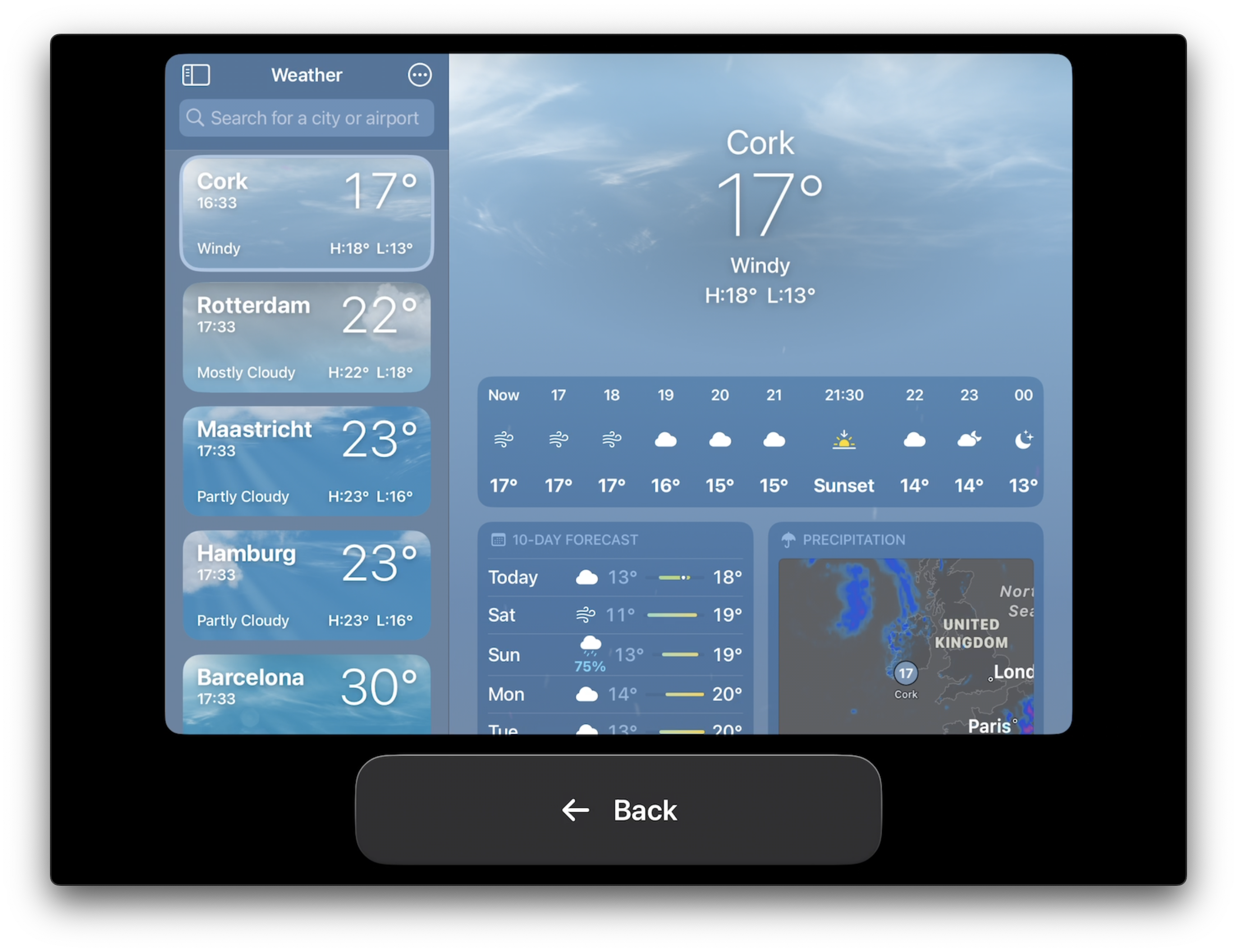
<p><img width="350" alt="The weather app showing its main screen. It shows weather for Barcelona, Spain." src="./assets/blog-assets/making-accessibility-acceessible/weather-vc.PNG" />
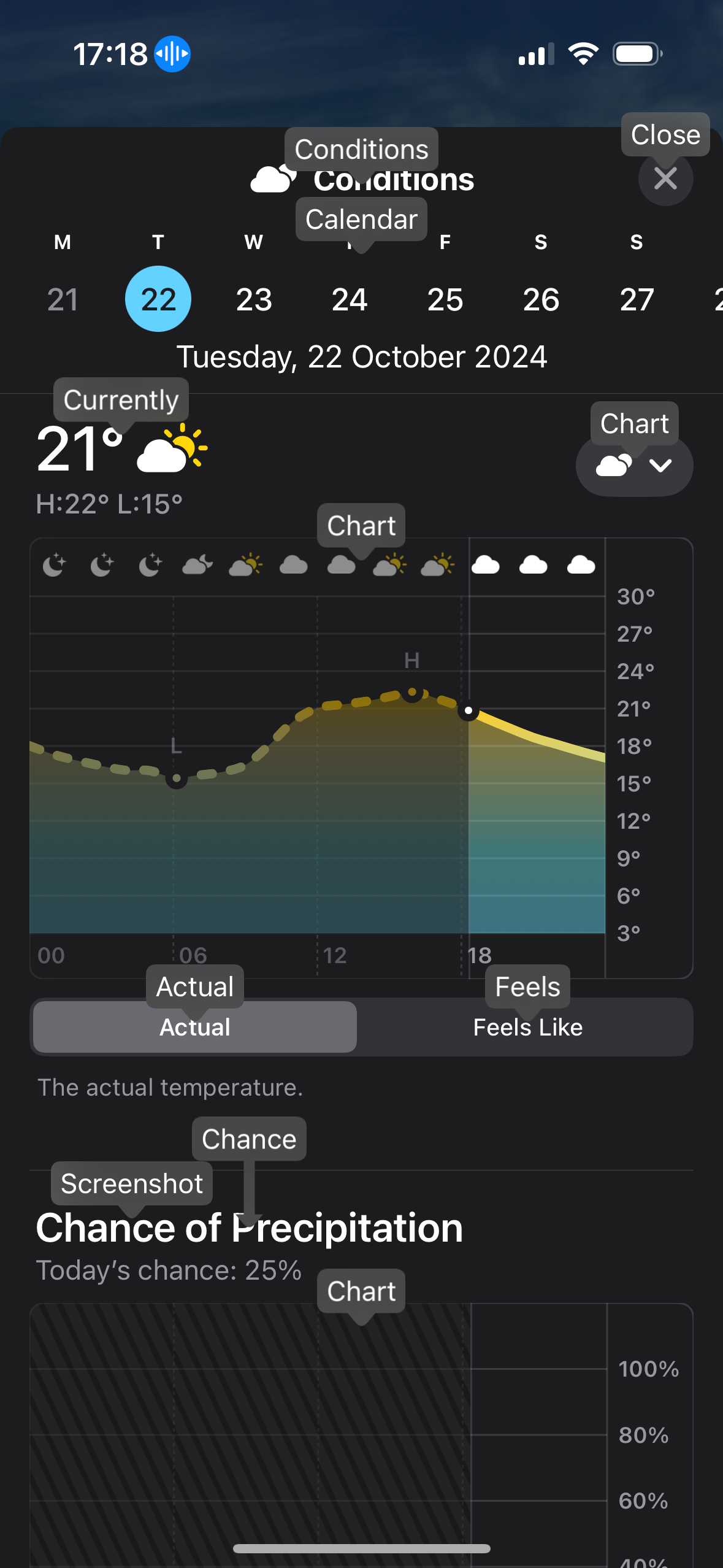
<img width="350" alt="A detail view showing weather details per hour, including charts showing temperature and precipitation." src="./assets/blog-assets/making-accessibility-acceessible/weather-vc2.PNG" /></p>

<p>Another thing that’s interesting here is it only showing the first word
within a label. For example, in the second image, there’s a “Feels Like” within
a segmented control, but its label is shown as “Feels”.
This makes it easier to activate an item, but at the same time makes it feel
less natural.</p>

<p>Alas, we can see a bunch of labels, giving us a visual overview of accessibility
pertaining Voice Control in our app. This includes some unexpected ones that are
likely bugs — like the “Currently” label on the current temperature in the
detail view. This is not an interactive element, and thus should not be exposed
to Voice Control. Similar to “Chart” at the top of the temperature chart, which
is also non-interactive.</p>

<p>All in all, it is a great way to get an initial feeling for an assistive
technology where navigating is likely to feel quite natural — it does not
require learning special gestures, for example.</p>

<p>This document describes <a href="https://support.apple.com/en-us/111778">how to use Voice Control on iOS</a>.
<br />
This document describes <a href="https://support.apple.com/en-us/102225">how to use Voice Control on macOS</a>.</p>

<h4 id="hover-text-macos">Hover Text (macOS)</h4>

<p>Hover Text allows you to show a large window of the selected element — which
goes beyond direct text elements.</p>

<p>Not only is this a great non-intrusive way to get a
better idea of accessibility, it’ll also come in handy when you’re on a video
call and a certain element is quite hard to read for the person on the other
end.</p>

<p>So that’s Hover Text. You can quite quickly navigate an application and get an
idea of its labels beyond interactive-only elements (like with Voice Control).</p>

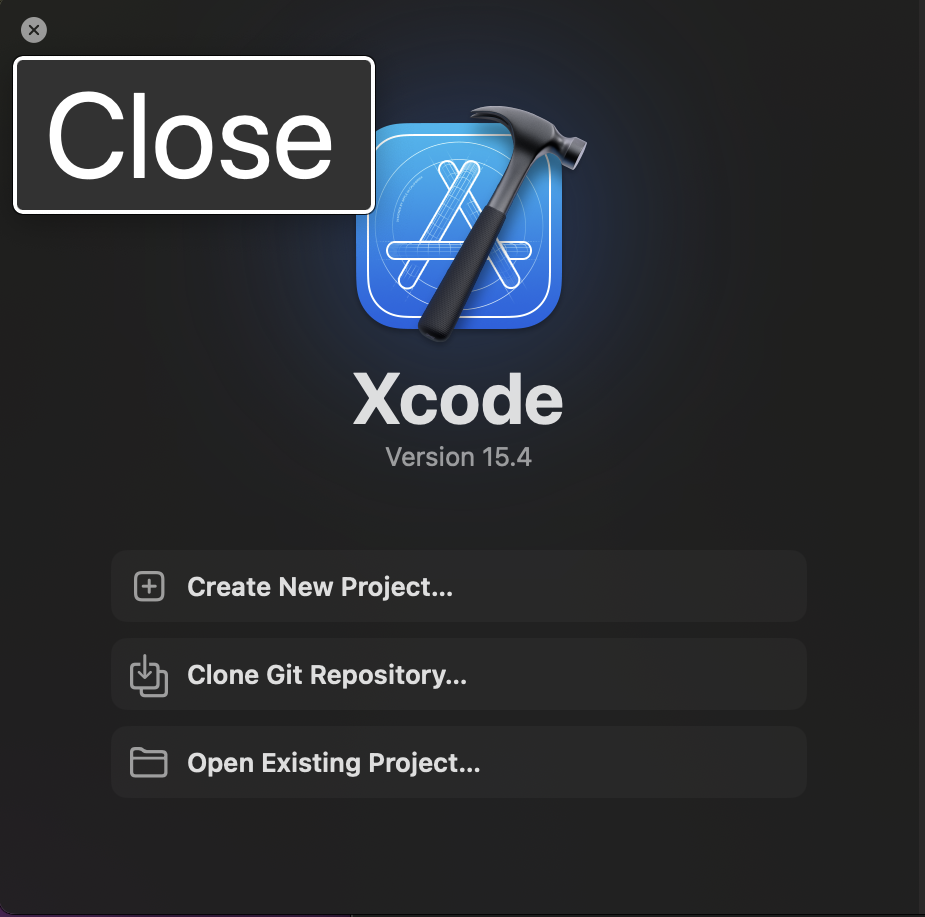
<p><img width="350" alt="The Xcode introduction screen with Hover Text showing 'Close' hovering over the x-button in the leading corner." src="./assets/blog-assets/making-accessibility-acceessible/close-xcode.png" />
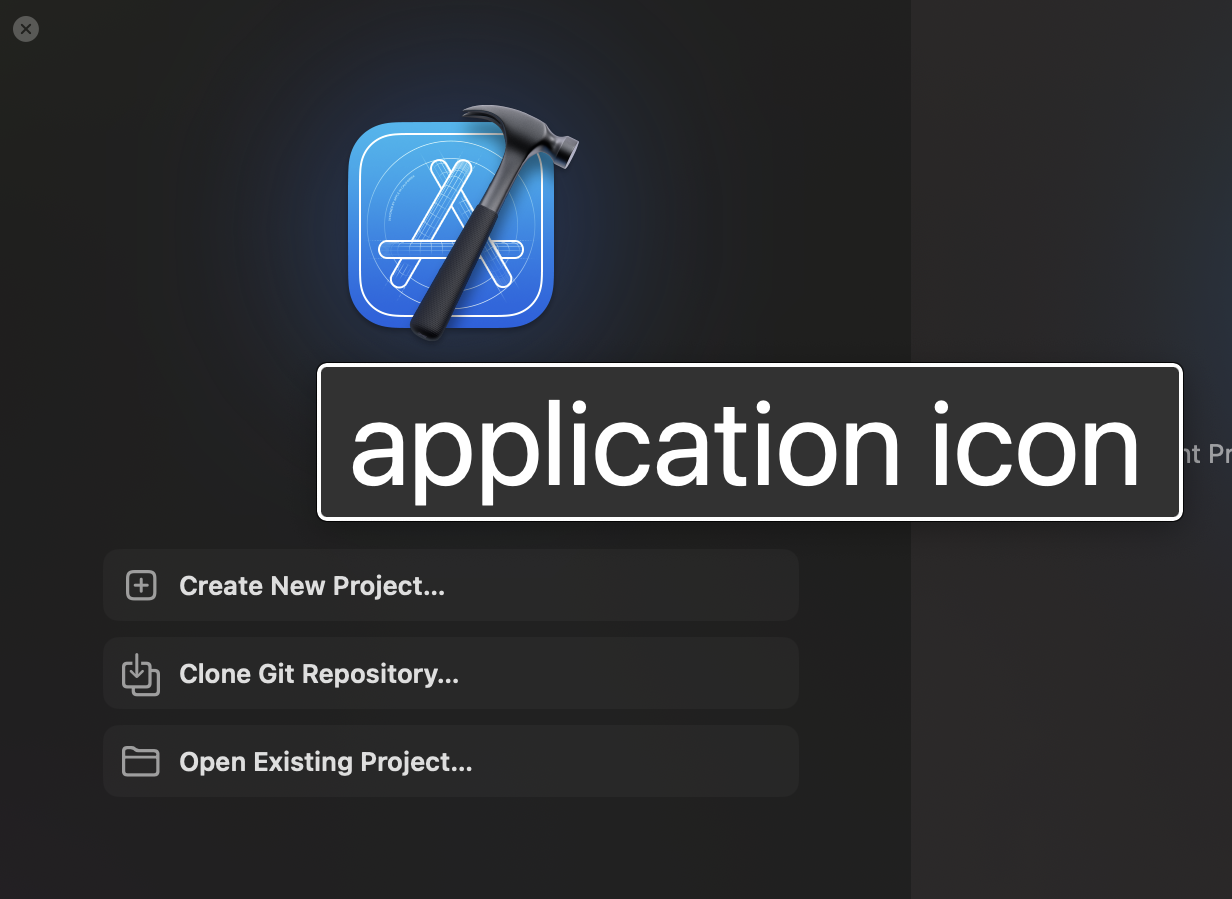
<img width="350" alt="The Xcode introduction screen with Hover Text showing 'application icon' hovering over the Xcode icon in its center." src="./assets/blog-assets/making-accessibility-acceessible/application-icon-xcode.png" /></p>

<p>The first image showing hover text over a button — with an expected label.
The second image showing a… not so great label. Additionally, this can likely
be hidden as an accessibility element, as it doesn’t convey information to
VoiceOver users — it’s decorative.</p>

<p>You can enable Hover Text on macOS in System Settings &gt; Accessibility &gt; Hover
Text. You can change its activation modifier if you wish.</p>

<h4 id="caption-panel">Caption Panel</h4>

<p>Using VoiceOver, the caption panel is a neat way to visualize its output.
Useful to verify what you think VoiceOver might have said, or if you want to
test it without requiring headphones or having the device’s speaker on.</p>

<p><img src="./assets/blog-assets/making-accessibility-acceessible/caption-panel.jpeg" alt="The VoiceOver caption panel showing its ouput in the weather app." /></p>

<p>On iOS, turn this on or off from Settings &gt; Accessibility &gt; VoiceOver, where
you’ll find a switch near the bottom of the screen.</p>

<p>On macOS, open VoiceOver Utility &gt; Visuals &gt; Show caption panel. Additionally,
you can enable the Braille Panel in the same place.</p>

<h4 id="bonus-screen-curtain">Bonus: Screen Curtain</h4>

<p>Alright, this last one might not really be making accessibility more accessible
like the others. But it does make accessibility more tangible in the context
of a screen reader.</p>

<p>Most users of screen readers are blind users or users with low vision.</p>

<p>For the former group… you don’t actually require the screen to be on. And
that’s Screen Curtain. There for three reasons: one is privacy — no screen output
means others can’t see what you’re doing. The second is efficiency — no pixels
to power and spend battery charge on.</p>

<p>And, third: it’s a great way to “not cheat” whilst using VoiceOver. It’s likely
you’ll still use visual cues to navigate the screen using VoiceOver, especially
to get out of situations where you feel stuck. But with Screen Curtain, that
becomes impossible. A “hardcore” way to understand your app’s accessibility and
how to navigate it.</p>

<p>This document describes <a href="https://support.apple.com/en-us/111797">how to turn Screen Curtain on and off</a>.</p>

<h1 id="closing-thoughts">Closing Thoughts</h1>

<p>Accessibility has a steep learning curve, but I hope these tools give you a
better idea where you can start. As well as a way to encourage others to get an
introduction to accessibility without having to dive deep into assistive
technologies. Let me know how you get on!</p>

<div class="footnotes" role="doc-endnotes">
  <ol>
    <li id="fn:1" role="doc-endnote">
      <p>Voice Control is expected to only show labels (or numbers) for elements that a user can activate. So note that a) labels shown for non-interactive elements suggest an issue to investigate, as well as b) it will not give you a complete picture of all labels present in an app; like a label that describes a non-interactive image (to VoiceOver), which itself is not available within Voice Control. <a href="#fnref:1" class="reversefootnote" role="doc-backlink">&#8617;</a></p>
    </li>
  </ol>
</div>]]></content><author><name></name></author><category term="swift" /><category term="accessibility" /><summary type="html"><![CDATA[In ‘Building an Accessibility Culture, One Step at a Time’, a presentation I recently gave at Swift Connection and SwiftLeeds, I spoke about “making accessibility accessible”. What does it mean, and how can we accomplish this?]]></summary></entry><entry><title type="html">Optimizing for VoiceOver and Voice Control</title><link href="https://www.basbroek.nl/optimizing-assistive-technology" rel="alternate" type="text/html" title="Optimizing for VoiceOver and Voice Control" /><published>2024-09-27T00:00:00+00:00</published><updated>2024-09-27T00:00:00+00:00</updated><id>https://www.basbroek.nl/optimizing-assistive-technology</id><content type="html" xml:base="https://www.basbroek.nl/optimizing-assistive-technology"><![CDATA[<p>I’ve <a href="https://www.youtube.com/watch?v=-RVvjDUhUA0">spoken about the layering system in accessibility</a>, 
with VoiceOver support being a good first step toward supporting Voice Control,
and Voice Control in turn being a good start in supporting Full Keyboard Access.</p>

<p>I stand by this! Things like labels, traits and values get you most of the way
there for Voice Control. We optimize for Voice Control (and Full Keyboard
Access) using input labels, and then we can further optimize Full Keyboard
Access verifying our keyboard support.</p>

<p>But with this great power comes great responsibility…</p>

<!--more-->

<p>A while ago, I was building a component to allow users to participate in a
survey, and it was an example where I ran into issues trying to optimize for
both VoiceOver and Voice Control, <em>because</em> the two systems lean on each other.</p>

<h1 id="building-a-survey-component">Building a survey component</h1>

<p>Based on certain conditions, we’d show a cell that would show a title, a
description, and two buttons: one to launch the survey, and another to dismiss
the survey cell. Simplified code as follows:</p>

<div class="language-swift highlighter-rouge"><div class="highlight"><pre class="highlight"><code><span class="kt">VStack</span> <span class="p">{</span>
    <span class="kt">VStack</span> <span class="p">{</span>
        <span class="n">title</span>
        <span class="n">description</span>
    <span class="p">}</span>
    <span class="n">surveyButton</span>
<span class="p">}</span>
<span class="o">.</span><span class="nf">overlay</span><span class="p">(</span><span class="nv">alignment</span><span class="p">:</span> <span class="o">.</span><span class="n">topTrailing</span><span class="p">)</span> <span class="p">{</span>
    <span class="n">dismissButton</span>
<span class="p">}</span>
</code></pre></div></div>

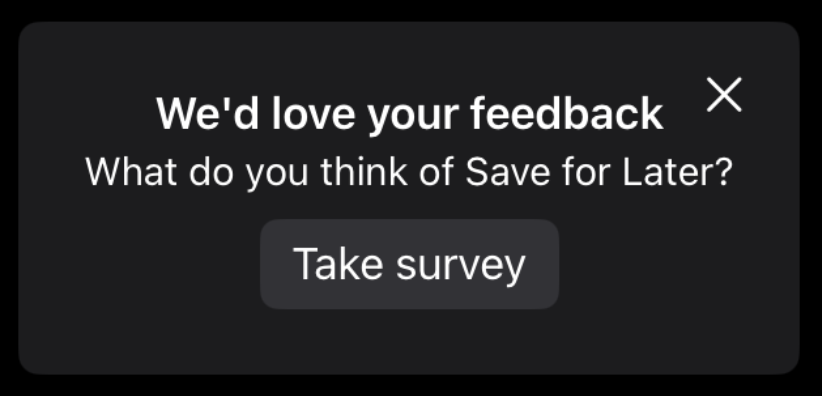
<p>With the component looking something like this<sup id="fnref:1" role="doc-noteref"><a href="#fn:1" class="footnote" rel="footnote">1</a></sup>:</p>

<p><img src="./assets/blog-assets/survey-cell.png" alt="The survey cell showing a title, description, dismiss button and &quot;take survey&quot; button." /></p>

<p>Initially, all elements were their own elements. The title, description, and two
buttons were separate.</p>

<p>The accessibility tree looked like this:</p>

<div class="language-plaintext highlighter-rouge"><div class="highlight"><pre class="highlight"><code>Dismiss, button
&gt;
We'd love your feedback
&gt;
What do you think of Save for Later?
&gt;
Take Survey, button
</code></pre></div></div>

<p>Let’s make sure the dismiss button is navigated to last using
<code class="language-plaintext highlighter-rouge">.accessibilitySortPriority</code>:</p>

<div class="language-swift highlighter-rouge"><div class="highlight"><pre class="highlight"><code><span class="n">dismissButton</span>
    <span class="c1">// To make sure assistive technologies navigate to the dismiss button</span>
    <span class="c1">// within this view last, essentially ignoring the heuristic of this</span>
    <span class="c1">// being the "first" element in the view.</span>
    <span class="o">.</span><span class="nf">accessibilitySortPriority</span><span class="p">(</span><span class="o">-</span><span class="mi">1</span><span class="p">)</span>
</code></pre></div></div>

<p>Then, I combined the title and description into one label. A VoiceOver user
would be unlikely to “skip” the description at any point “on their way” to the
button anyway, and the title and description together gave a better idea of what
button the user would interact with next.</p>

<div class="language-swift highlighter-rouge"><div class="highlight"><pre class="highlight"><code><span class="kt">VStack</span> <span class="p">{</span>
    <span class="kt">VStack</span> <span class="p">{</span>
        <span class="n">title</span>
        <span class="n">description</span>
    <span class="p">}</span>
    <span class="o">.</span><span class="nf">accessibilityElement</span><span class="p">(</span><span class="nv">children</span><span class="p">:</span> <span class="o">.</span><span class="n">combine</span><span class="p">)</span>
    <span class="c1">// outer VStack stuff...</span>
<span class="p">}</span>
</code></pre></div></div>

<p>So far so good — a reminder that Voice Control only exposes elements that are
buttons, so this would affect VoiceOver but not Voice Control.</p>

<h1 id="optimizing-for-voiceover">Optimizing for VoiceOver</h1>

<p>To make a further improvement, I wanted to expose the two buttons as actions,
making “take survey” the default action and “dismiss” a secondary one. In that
way, we wouldn’t have to deal with modifying the sort order to make sure the
survey button would preceed the (visually preceding) dismiss button.</p>

<p>Additionally, it would collapse the more complex cell into one element for the
user to interact with.</p>

<div class="language-swift highlighter-rouge"><div class="highlight"><pre class="highlight"><code><span class="kt">VStack</span> <span class="p">{</span>
    <span class="kt">VStack</span> <span class="p">{</span>
        <span class="n">title</span>
        <span class="n">description</span>
    <span class="p">}</span>
    <span class="n">surveyButton</span>
<span class="p">}</span>
<span class="o">.</span><span class="nf">overlay</span><span class="p">(</span><span class="nv">alignment</span><span class="p">:</span> <span class="o">.</span><span class="n">topTrailing</span><span class="p">)</span> <span class="p">{</span>
    <span class="n">dismissButton</span>
<span class="p">}</span>
<span class="o">.</span><span class="nf">accessibilityElement</span><span class="p">(</span><span class="nv">children</span><span class="p">:</span> <span class="o">.</span><span class="n">combine</span><span class="p">)</span>
</code></pre></div></div>

<p>Talking about “with great power comes great responsibility”… the
<code class="language-plaintext highlighter-rouge">.accessibilityElement(children: .combine)</code> is <em>technically</em> all we need here,
but restricts optimizations.</p>

<p>In this example, it does two major things:</p>

<ul>
  <li>It groups the <code class="language-plaintext highlighter-rouge">Text</code> children to form its label, like we did with the same
code on the inner <code class="language-plaintext highlighter-rouge">VStack</code> previously.</li>
  <li>It exposes the <code class="language-plaintext highlighter-rouge">Button</code> children as accessibility actions.</li>
</ul>

<p>Great..? Well, I’m not entirely sure what users that use VoiceOver would prefer,
but I was planning to schedule a user interview to find out.</p>

<p>… planning to schedule?</p>

<p>Well, yes. As after making this change, it dawned on me this might make Voice
Control interaction awkward.</p>

<h1 id="voice-control">Voice Control</h1>

<p>In VoiceOver, this could be spoken as “We’d love your feedback, What do you
think of Save for Later?, button, actions available”. It would indicate that the
text is a button that can be interacted with, <em>and</em> that the button has (other)
actions.</p>

<p>But for Voice Control, we now have a… challenge. How can we interact with
either button, now that we have just one element?</p>

<p>Technically, the whole element is a button. So we could try to activate
something that way? But what would that something be and do?</p>

<p>Well, Voice Control will generate an event… in the center of the view. Which
in our case is just some text. Not the dismiss button, not the survey button.</p>

<p>Well, that’s awkward.</p>

<p>Now, <em>technically</em> the user could in this case say “show actions for
<code class="language-plaintext highlighter-rouge">[element]</code>”, for which we can at least optimize the <code class="language-plaintext highlighter-rouge">[element]</code>, which is now
that long label:</p>

<div class="language-swift highlighter-rouge"><div class="highlight"><pre class="highlight"><code><span class="kt">VStack</span> <span class="p">{</span>
    <span class="c1">// element details</span>
<span class="p">}</span>
<span class="o">.</span><span class="nf">overlay</span><span class="p">(</span><span class="nv">alignment</span><span class="p">:</span> <span class="o">.</span><span class="n">topTrailing</span><span class="p">)</span> <span class="p">{</span>
    <span class="n">dismissButton</span>
<span class="p">}</span>
<span class="o">.</span><span class="nf">accessibilityElement</span><span class="p">(</span><span class="nv">children</span><span class="p">:</span> <span class="o">.</span><span class="n">combine</span><span class="p">)</span>
<span class="o">.</span><span class="nf">accessibilityInputLabels</span><span class="p">([</span><span class="s">"Take survey"</span><span class="p">])</span>
</code></pre></div></div>

<p>Now the user can at least say “show actions for take survey”, and they would
then be able to either take the survey or dismiss it.</p>

<p>Unfortunately, the only way to visually indicate there are actions for an
element is to use “show numbers”. And only on iOS<sup id="fnref:2" role="doc-noteref"><a href="#fn:2" class="footnote" rel="footnote">2</a></sup> does it indicate a
“double arrow”… which as far as I know is undocumented. In other words, a
user would somehow need to be using “show numbers” (and not “show labels”)
<em>and</em> know what this double arrow represents.</p>

<p>But that leaves us with “Take survey” as a “ghost” action. Despite being the
most prominent option, it now doesn’t actually do anything.</p>

<p>I can see a world where “Take survey” would result in actually showing the two
underlying actions, but that comes with its own array of problems, so perhaps
it’s not that great of an idea in practice.</p>

<p>And so with that, I decided to revert to the version that does combine title and
description, but otherwise leaves the component alone. Perhaps not the “perfect”
solution for VoiceOver, but a decent one that then also allows for a great
Voice Control experience.</p>

<div class="language-swift highlighter-rouge"><div class="highlight"><pre class="highlight"><code><span class="kt">VStack</span> <span class="p">{</span>
    <span class="kt">VStack</span> <span class="p">{</span>
        <span class="n">title</span>
        <span class="n">description</span>
    <span class="p">}</span>
    <span class="o">.</span><span class="nf">accessibilityElement</span><span class="p">(</span><span class="nv">children</span><span class="p">:</span> <span class="o">.</span><span class="n">combine</span><span class="p">)</span>
    <span class="n">surveyButton</span>
<span class="p">}</span>
<span class="o">.</span><span class="nf">overlay</span><span class="p">(</span><span class="nv">alignment</span><span class="p">:</span> <span class="o">.</span><span class="n">topTrailing</span><span class="p">)</span> <span class="p">{</span>
    <span class="n">dismissButton</span>
        <span class="c1">// To make sure assistive technologies navigate to the dismiss button</span>
        <span class="c1">// within this view last, essentially ignoring the heuristic of this</span>
        <span class="c1">// being the "first" element in the view.</span>
        <span class="o">.</span><span class="nf">accessibilitySortPriority</span><span class="p">(</span><span class="o">-</span><span class="mi">1</span><span class="p">)</span>
<span class="p">}</span>
</code></pre></div></div>

<h1 id="closing-thoughts">Closing thoughts</h1>

<p>It’d be great if we can see some additional affordances in Voice Control that
make it a bit easier to work with — especially as a user. Documented indications
for actions that work across platforms, for example.</p>

<p>But for now, we’ll have to make do with some limitations, especially when trying
to optimize for multiple assistive technologies.</p>

<hr />

<p><sub>Thanks <em>so much</em> to <a href="https://github.com/swaan-miller">Swaan</a>
for proofreading!</sub></p>

<div class="footnotes" role="doc-endnotes">
  <ol>
    <li id="fn:1" role="doc-endnote">
      <p>I’m clearly not (cut out to be) a designer. <a href="#fnref:1" class="reversefootnote" role="doc-backlink">&#8617;</a></p>
    </li>
    <li id="fn:2" role="doc-endnote">
      <p>As far as I know this only works on iOS. It does not work on macOS; I’m not entirely sure of platforms like visionOS, tvOS, and watchOS. <a href="#fnref:2" class="reversefootnote" role="doc-backlink">&#8617;</a></p>
    </li>
  </ol>
</div>]]></content><author><name></name></author><category term="swift" /><category term="accessibility" /><summary type="html"><![CDATA[I’ve spoken about the layering system in accessibility, with VoiceOver support being a good first step toward supporting Voice Control, and Voice Control in turn being a good start in supporting Full Keyboard Access. I stand by this! Things like labels, traits and values get you most of the way there for Voice Control. We optimize for Voice Control (and Full Keyboard Access) using input labels, and then we can further optimize Full Keyboard Access verifying our keyboard support. But with this great power comes great responsibility…]]></summary></entry><entry><title type="html">Testing Swift Testing</title><link href="https://www.basbroek.nl/testing-swift-testing" rel="alternate" type="text/html" title="Testing Swift Testing" /><published>2024-06-20T00:00:00+00:00</published><updated>2024-06-20T00:00:00+00:00</updated><id>https://www.basbroek.nl/testing-swift-testing</id><content type="html" xml:base="https://www.basbroek.nl/testing-swift-testing"><![CDATA[<p>At WWDC24, Apple introduced Swift Testing, which is a new way to write tests in
Swift, practically replacing XCTest for unit tests. And it’s <em>great</em>.</p>

<p>There are two sessions that give a great introduction to the new framework, and
I recommend checking them out:</p>

<ul>
  <li><a href="https://developer.apple.com/videos/play/wwdc2024-10179">Meet Swift Testing</a></li>
  <li><a href="https://developer.apple.com/videos/play/wwdc2024-10195">Go further with Swift Testing</a></li>
</ul>

<!--more-->

<h1 id="introduction">Introduction</h1>

<p>Where with XCTest, we’d need setting up an <code class="language-plaintext highlighter-rouge">XCTestCase</code> subclass:</p>

<div class="language-swift highlighter-rouge"><div class="highlight"><pre class="highlight"><code><span class="kd">import</span> <span class="kt">XCTest</span>

<span class="kd">class</span> <span class="kt">MyTests</span><span class="p">:</span> <span class="kt">XCTestCase</span> <span class="p">{</span>
    <span class="kd">func</span> <span class="nf">testFiltering</span><span class="p">()</span> <span class="p">{</span>
        <span class="c1">// test here</span>
    <span class="p">}</span>
<span class="p">}</span>
</code></pre></div></div>

<p>Using Swift Testing requires barely any set up at all. At it’s simplest, we can
do the following:</p>

<div class="language-swift highlighter-rouge"><div class="highlight"><pre class="highlight"><code><span class="kd">import</span> <span class="kt">Testing</span>

<span class="kd">@Test</span> <span class="kd">func</span> <span class="nf">filtering</span><span class="p">()</span> <span class="p">{</span>
    <span class="c1">// test here</span>
<span class="p">}</span>
</code></pre></div></div>

<p>And where with XCTest, we had a whole range of <code class="language-plaintext highlighter-rouge">XCTAssert*</code> functions, Swift
Testing has one “assert” to rule them all: <code class="language-plaintext highlighter-rouge">#expect</code> is built using the power
of macros, and is <em>nice</em>:</p>

<div class="language-swift highlighter-rouge"><div class="highlight"><pre class="highlight"><code><span class="kd">@Test</span> <span class="kd">func</span> <span class="nf">filtering</span><span class="p">()</span> <span class="p">{</span>
    <span class="k">let</span> <span class="nv">input</span> <span class="o">=</span> <span class="p">[</span><span class="mi">1</span><span class="p">,</span> <span class="mi">3</span><span class="p">,</span> <span class="mi">2</span><span class="p">]</span>
    <span class="k">let</span> <span class="nv">expected</span> <span class="o">=</span> <span class="p">[</span><span class="mi">1</span><span class="p">,</span> <span class="mi">2</span><span class="p">,</span> <span class="mi">3</span><span class="p">]</span>

    <span class="cp">#expect(input.sorted() == expected)</span>
<span class="p">}</span>
</code></pre></div></div>

<p>If we’d have forgotten to call <code class="language-plaintext highlighter-rouge">.sorted()</code>, we’d get failure output:</p>

<div class="language-swift highlighter-rouge"><div class="highlight"><pre class="highlight"><code><span class="kd">@Test</span> <span class="kd">func</span> <span class="nf">filtering</span><span class="p">()</span> <span class="p">{</span>
    <span class="k">let</span> <span class="nv">input</span> <span class="o">=</span> <span class="p">[</span><span class="mi">1</span><span class="p">,</span> <span class="mi">3</span><span class="p">,</span> <span class="mi">2</span><span class="p">]</span>
    <span class="k">let</span> <span class="nv">expected</span> <span class="o">=</span> <span class="p">[</span><span class="mi">1</span><span class="p">,</span> <span class="mi">2</span><span class="p">,</span> <span class="mi">3</span><span class="p">]</span>

    <span class="cp">#expect(input == expected)</span>
    <span class="c1">// Expectation failed: (input → [1, 3, 2]) == (expected → [1, 2, 3])</span>
<span class="p">}</span>
</code></pre></div></div>

<p>… which also works nicely with things that wouldn’t get rich diagnostics in
XCTest, like <code class="language-plaintext highlighter-rouge">.contains</code>:</p>

<div class="language-swift highlighter-rouge"><div class="highlight"><pre class="highlight"><code><span class="kd">@Test</span> <span class="kd">func</span> <span class="nf">filtering</span><span class="p">()</span> <span class="p">{</span>
    <span class="k">let</span> <span class="nv">input</span> <span class="o">=</span> <span class="p">[</span><span class="mi">1</span><span class="p">,</span> <span class="mi">3</span><span class="p">,</span> <span class="mi">2</span><span class="p">]</span>

    <span class="cp">#expect(input.contains(5))</span>
    <span class="c1">// Expectation failed: (input → [1, 3, 2]).contains(5)</span>
<span class="p">}</span>
</code></pre></div></div>

<h1 id="beyond-the-basics">Beyond the basics</h1>

<p>Swift Testing supports <em>parameterized testing</em>, allowing us to pass multiple
parameters to test at once, where before we’d need to define either individual
test functions or loop over a sequence. What’s particularly neat about it is
that Xcode makes it so you can see exactly which parameter input may have
failed, and allows you to rerun that one input separately.</p>

<div class="language-swift highlighter-rouge"><div class="highlight"><pre class="highlight"><code><span class="kd">@Test</span><span class="p">(</span><span class="nv">arguments</span><span class="p">:</span> <span class="p">[</span><span class="mi">1</span><span class="p">,</span> <span class="mi">2</span><span class="p">,</span> <span class="mi">3</span><span class="p">,</span> <span class="mi">4</span><span class="p">])</span>
<span class="kd">func</span> <span class="nf">filtering</span><span class="p">(</span><span class="nv">expected</span><span class="p">:</span> <span class="kt">Int</span><span class="p">)</span> <span class="p">{</span>
    <span class="k">let</span> <span class="nv">input</span> <span class="o">=</span> <span class="p">[</span><span class="mi">1</span><span class="p">,</span> <span class="mi">3</span><span class="p">,</span> <span class="mi">2</span><span class="p">]</span>

    <span class="cp">#expect(input.contains(expected))</span>
    <span class="c1">// Expectation failed: (input → [1, 3, 2]).contains(expected → 4)</span>
<span class="p">}</span>
</code></pre></div></div>

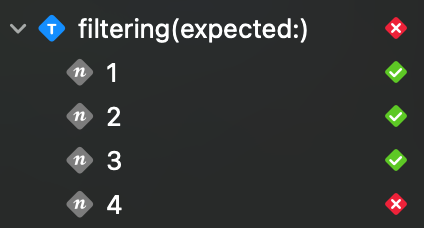
<p>Which show up in the Test inspector as such:</p>

<p><img src="./assets/blog-assets/parameterized-test-results.png" alt="Test inspector showing the `filtering(expected:)` test with its four parameters. One through three are marked as passing, four as failing. All can individually be re-run." /></p>

<h1 id="how-do-i">How do I..?</h1>

<p>Some parts you might be familiar with in XCTest have different names under Swift
Testing, which may require a bit to get used to. Here’s some:</p>

<div class="language-swift highlighter-rouge"><div class="highlight"><pre class="highlight"><code><span class="k">let</span> <span class="nv">result</span> <span class="o">=</span> <span class="k">try</span> <span class="kt">XCTUnwrap</span><span class="p">(</span><span class="n">myOptional</span><span class="p">)</span>

<span class="c1">// becomes</span>

<span class="k">let</span> <span class="nv">result</span> <span class="o">=</span> <span class="k">try</span> <span class="err">#</span><span class="nf">require</span><span class="p">(</span><span class="n">myOptional</span><span class="p">)</span>
</code></pre></div></div>

<div class="language-swift highlighter-rouge"><div class="highlight"><pre class="highlight"><code><span class="kt">XCTFail</span><span class="p">(</span><span class="s">"You shall not pass"</span><span class="p">)</span>

<span class="c1">// becomes</span>

<span class="kt">Issue</span><span class="o">.</span><span class="nf">record</span><span class="p">(</span><span class="s">"You shall not pass"</span><span class="p">)</span>
</code></pre></div></div>

<div class="language-swift highlighter-rouge"><div class="highlight"><pre class="highlight"><code><span class="kt">XCTAssertTrue</span><span class="p">(</span>
    <span class="kc">true</span><span class="p">,</span> 
    <span class="nv">file</span><span class="p">:</span> <span class="kd">#file</span><span class="p">,</span> <span class="c1">// StaticString</span>
    <span class="nv">line</span><span class="p">:</span> <span class="kd">#line</span> <span class="c1">// UInt</span>
<span class="p">)</span>

<span class="c1">// becomes</span>

<span class="cp">#expect(</span>
    <span class="kc">true</span><span class="p">,</span>
    <span class="nv">sourceLocation</span><span class="p">:</span> <span class="kt">SourceLocation</span><span class="p">(</span>
        <span class="nv">fileID</span><span class="p">:</span> <span class="kd">#file</span><span class="kt">ID</span><span class="p">,</span> <span class="c1">// String</span>
        <span class="nv">filePath</span><span class="p">:</span> <span class="kd">#file</span><span class="kt">Path</span><span class="p">,</span> <span class="c1">// String</span>
        <span class="nv">line</span><span class="p">:</span> <span class="kd">#line</span><span class="p">,</span> <span class="c1">// Int</span>
        <span class="nv">column</span><span class="p">:</span> <span class="kd">#column</span> <span class="c1">// Int</span>
    <span class="p">)</span>
<span class="p">)</span>
</code></pre></div></div>

<div class="language-swift highlighter-rouge"><div class="highlight"><pre class="highlight"><code><span class="kt">XCTAssertEqual</span><span class="p">(</span><span class="mf">1.0</span><span class="p">,</span> <span class="mf">1.0</span><span class="p">,</span> <span class="nv">accuracy</span><span class="p">:</span> <span class="mf">0.1</span><span class="p">)</span>

<span class="c1">// becomes... tricky. Apple recommends to use `isApproximatelyEqual()` from</span>
<span class="c1">// its `swift-numerics` package.</span>
</code></pre></div></div>

<h1 id="grouping-tests">Grouping tests</h1>

<p>You can group tests with tags, part of the <em>trait</em> system of Swift Testing.
You can do so across package boundaries, which makes it so you’ll probably
want to create a package to define said tags, which you’d do like this:</p>

<div class="language-swift highlighter-rouge"><div class="highlight"><pre class="highlight"><code><span class="kd">extension</span> <span class="kt">Tag</span> <span class="p">{</span>
    <span class="kd">@Tag</span> <span class="kd">static</span> <span class="k">var</span> <span class="nv">subscriptions</span><span class="p">:</span> <span class="k">Self</span>
<span class="p">}</span>
</code></pre></div></div>

<p>To apply this to a test or test suite, use</p>

<div class="language-swift highlighter-rouge"><div class="highlight"><pre class="highlight"><code><span class="kd">@Test</span><span class="p">(</span><span class="o">.</span><span class="nf">tags</span><span class="p">(</span><span class="o">.</span><span class="n">subscriptions</span><span class="p">))</span>
</code></pre></div></div>

<p>or in a group of tests</p>

<div class="language-swift highlighter-rouge"><div class="highlight"><pre class="highlight"><code><span class="kd">@Suite</span><span class="p">(</span><span class="o">.</span><span class="nf">tags</span><span class="p">(</span><span class="o">.</span><span class="n">subscriptions</span><span class="p">))</span>
<span class="kd">struct</span> <span class="kt">Filtering</span> <span class="p">{</span>
    <span class="kd">@Test</span> <span class="kd">func</span> <span class="nf">filter</span><span class="p">()</span> <span class="p">{}</span>
<span class="p">}</span>
</code></pre></div></div>

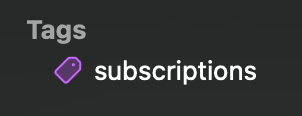
<p>Tags show up in the test inspector, similar to what we saw before with
parameterized tests. They can be run from there, or inspected to see if a change
you made may have impacted related tests.</p>

<p><img src="./assets/blog-assets/test-tags.png" alt="Test inspector showing a &quot;Tags&quot; section showing one entry, &quot;subscriptions&quot;." /></p>

<h1 id="i-dont--cant-use-xcode-16-yet">I don’t / can’t use Xcode 16 yet!</h1>

<p>… bummer. That means you’ll have to wait to start using Swift Testing,
although if you have the time, you could <em>use</em> Xcode 16 to start converting
tests, and still merge them into your Xcode 15-branch like so:</p>

<div class="language-swift highlighter-rouge"><div class="highlight"><pre class="highlight"><code><span class="cp">#if compiler(&gt;=6.0)</span>
<span class="kd">import</span> <span class="kt">Testing</span>

<span class="kd">@Test</span> <span class="kd">func</span> <span class="nf">filter</span><span class="p">()</span> <span class="p">{}</span>
<span class="cp">#endif</span>
</code></pre></div></div>

<p>… which may or may not be useful for your project. You can otherwise keep
things in a separate branch.</p>

<h1 id="closing-thoughts">Closing thoughts</h1>

<p>Only having scratched the surface, it’s <em>fun</em> to write tests with Swift Testing.
I’d recommend you try it out and see how it can clean up some of your tests,
perhaps starting with those taking multiple arguments.</p>

<p>I’d recommend taking a look at the documentation on <a href="https://developer.apple.com/documentation/testing/migratingfromxctest">migrating a test from
XCTest</a>,
which mentions a bunch of great comparisons between the two frameworks that’ll
help get you started.</p>

<p>Let me know how you get on!</p>]]></content><author><name></name></author><category term="swift" /><category term="testing" /><summary type="html"><![CDATA[At WWDC24, Apple introduced Swift Testing, which is a new way to write tests in Swift, practically replacing XCTest for unit tests. And it’s great. There are two sessions that give a great introduction to the new framework, and I recommend checking them out: Meet Swift Testing Go further with Swift Testing]]></summary></entry><entry><title type="html">Exploring Assistive Access</title><link href="https://www.basbroek.nl/exploring-assistive-access" rel="alternate" type="text/html" title="Exploring Assistive Access" /><published>2023-07-29T00:00:00+00:00</published><updated>2023-07-29T00:00:00+00:00</updated><id>https://www.basbroek.nl/exploring-assistive-access</id><content type="html" xml:base="https://www.basbroek.nl/exploring-assistive-access"><![CDATA[<p>I’ve been meaning to explore <a href="https://www.apple.com/newsroom/2023/05/apple-previews-live-speech-personal-voice-and-more-new-accessibility-features/">Assistive Access</a>,
a new accessibility feature announced a few days ahead of this year’s Global
Accessibility Awareness Day. It has taken a bit of time, as it didn’t seem to
be available in the simulator when the first beta came around, and then life
happened… but I was finally able to set it up on my iPad and try it out, and
I wanted to share my experience and findings here.</p>

<!--more-->

<p>Not in the loop on Assistive Access? Beyond Apple’s announcement earlier this
year, there’s an awesome <a href="https://developer.apple.com/videos/play/wwdc2023/10032/">WWDC session on Assistive Technology</a>
by none other than Allen Whearry.</p>

<p>⚠️ Note that Assistive Access is currently still beta software, and may have
bugs that I therefore won’t judge too harshly. ⚠️</p>

<h2 id="setup">Setup</h2>

<p>It’s interesting that the initial setup of Assistive Access is a little
different than the setup for subsequent changes; the initial setup is, however,
nicely guiding you and introducing certain concepts and gotchas, which is nice.</p>

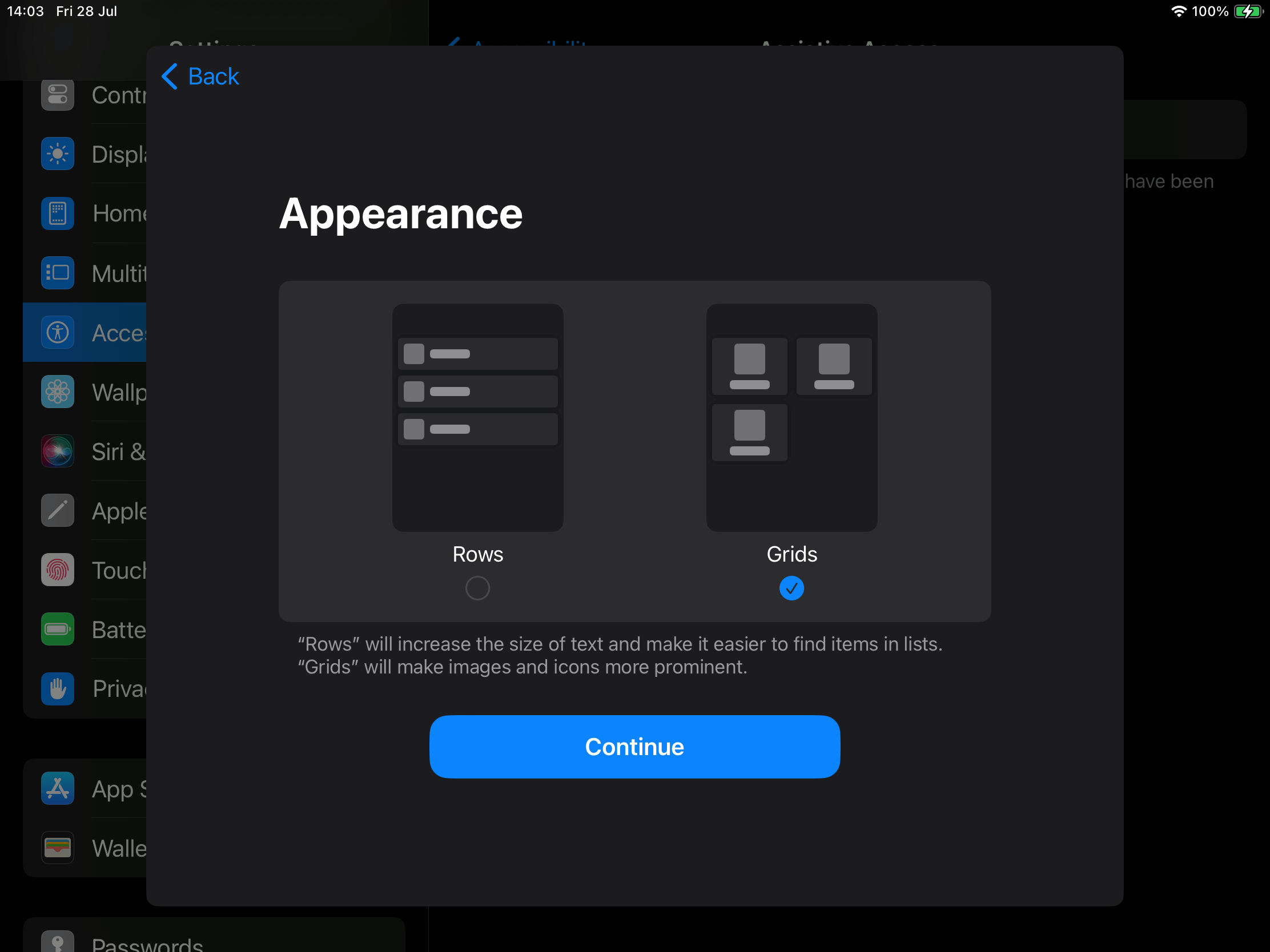
<p>For example, you can set up the “appearance” in Assistive Access to be row-based
or grid-based.</p>

<p><img src="./assets/blog-assets/assistive-access/setup-appearance.PNG" alt="An iPad in landscape mode showing the appearance initial setup screen within Assistive Access. Rows on the left, Grids on the right." /></p>

<p>After this, we can start setting up apps.</p>

<h3 id="first-party-apps">First Party Apps</h3>

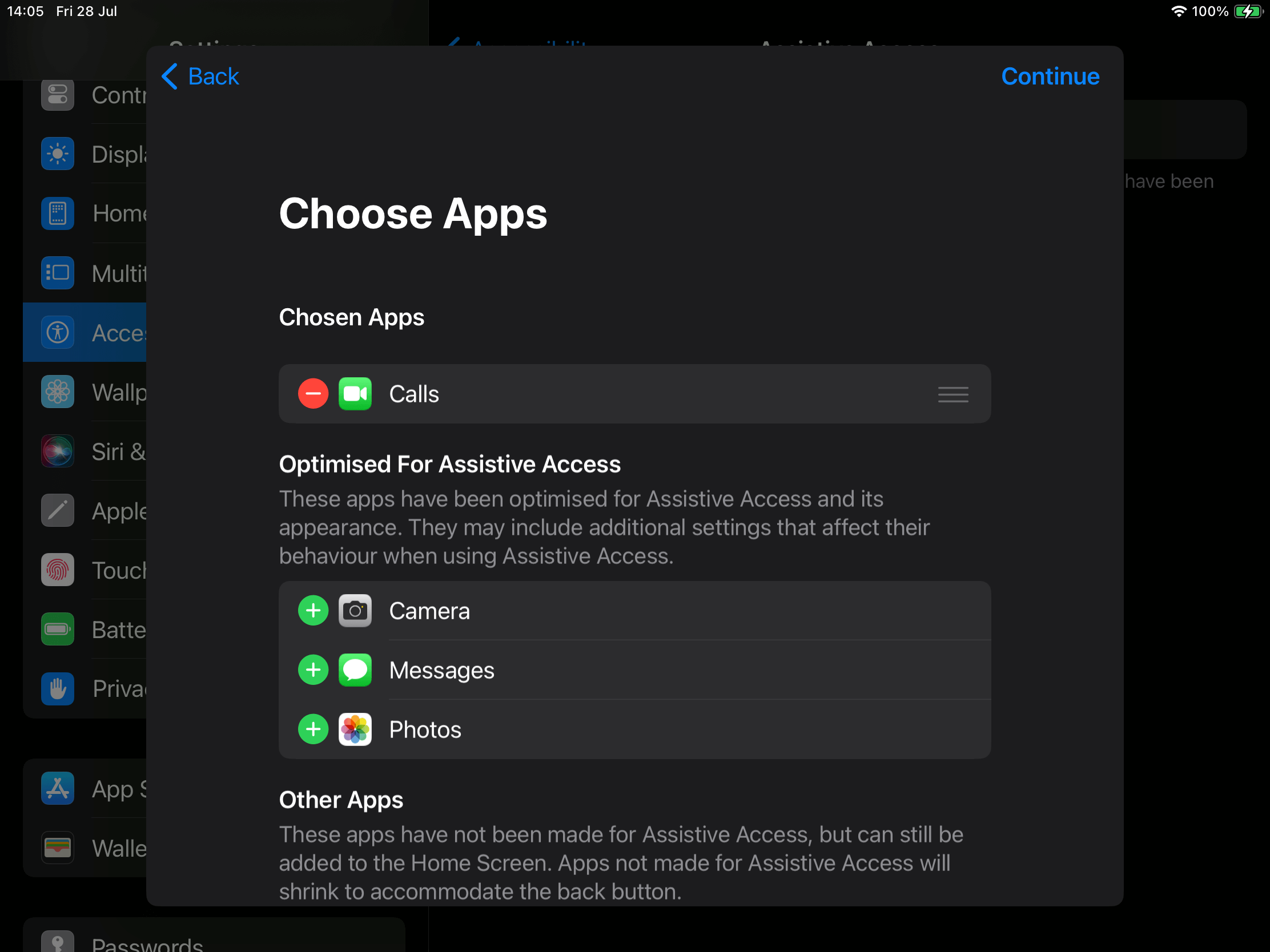
<p>There are a few first-party apps that have been optimized for Assistive Access,
by means of having fewer features and a bigger, bolder user interface.
Unfortunately, this is not available for any third party apps… yet.</p>

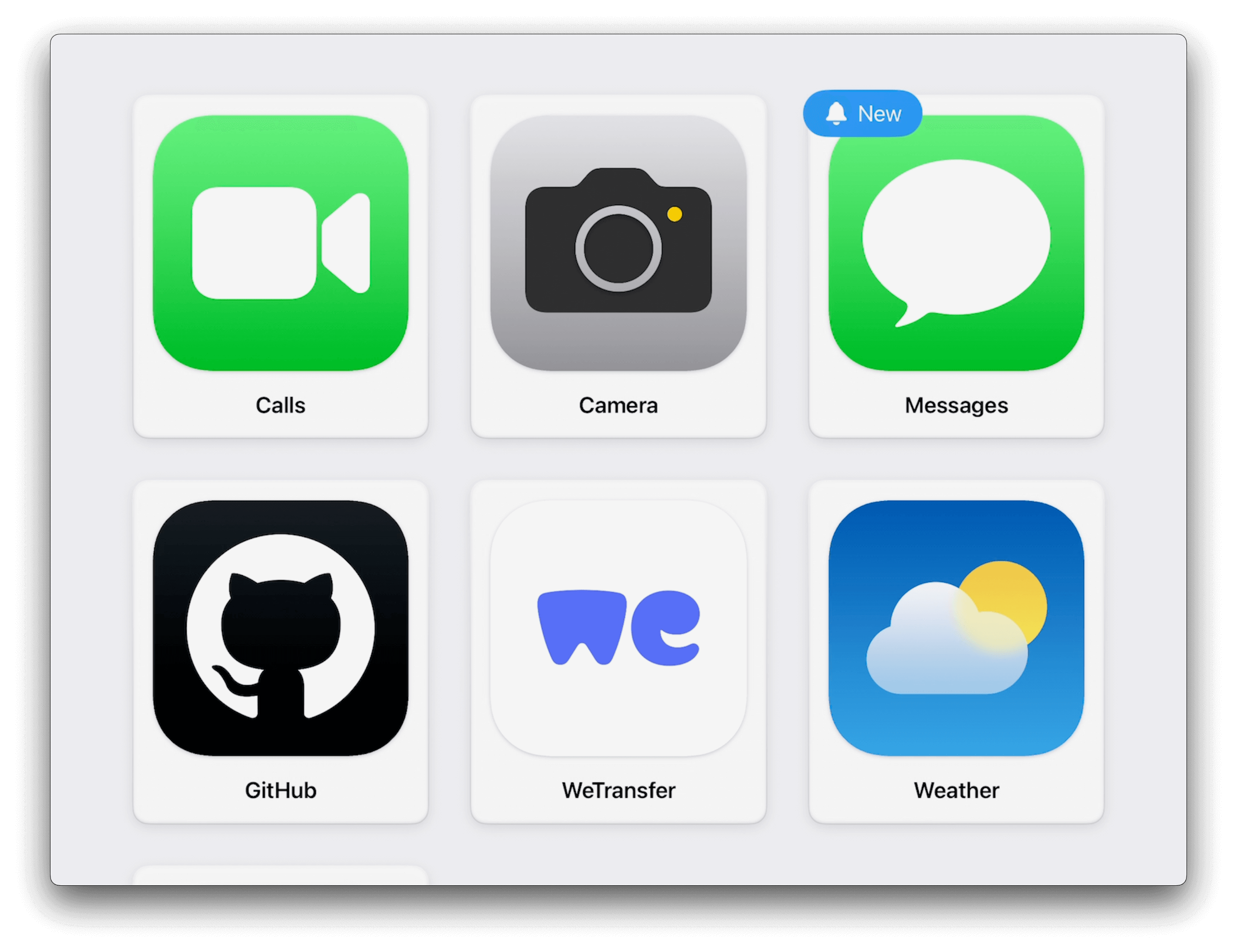
<p><img src="./assets/blog-assets/assistive-access/setup-calls-setup.PNG" alt="An iPad in landscape mode showing the &quot;Choose Apps&quot; initial setup screen within Assistive Access." /></p>

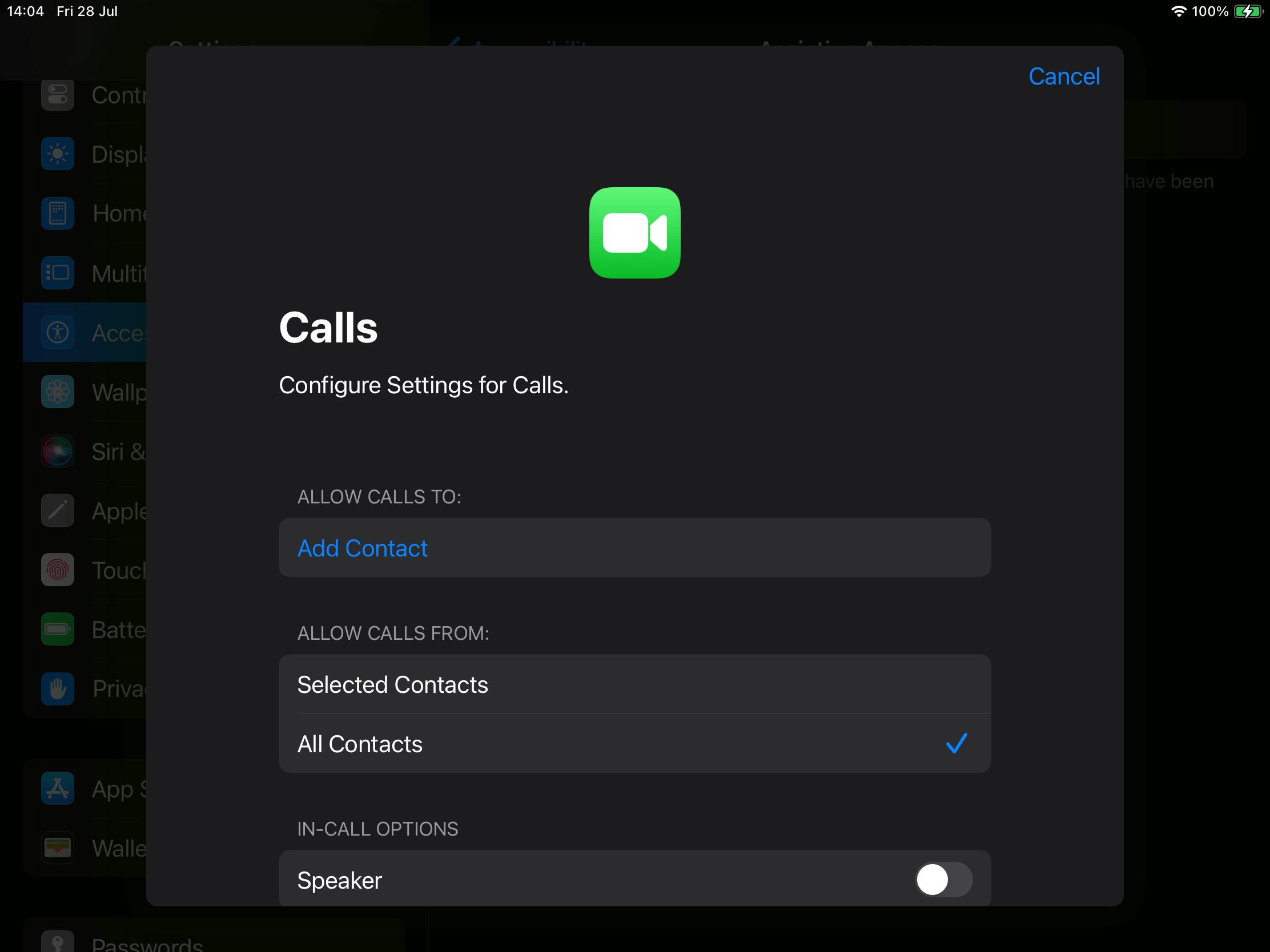
<p>We can see that Calls has setup options to enable or disable certain
functionalities. Note also that this “Calls” app actually combines features
from both the “Phone” and “FaceTime” apps in one app — neat!</p>

<p><img src="./assets/blog-assets/assistive-access/setup-calls-settings.PNG" alt="An iPad in landscape mode showing the Calls app's setting configuration screen. It shows options like limiting the contacts available within Assistive Access." /></p>

<h3 id="3rd-party-apps">3rd Party Apps</h3>

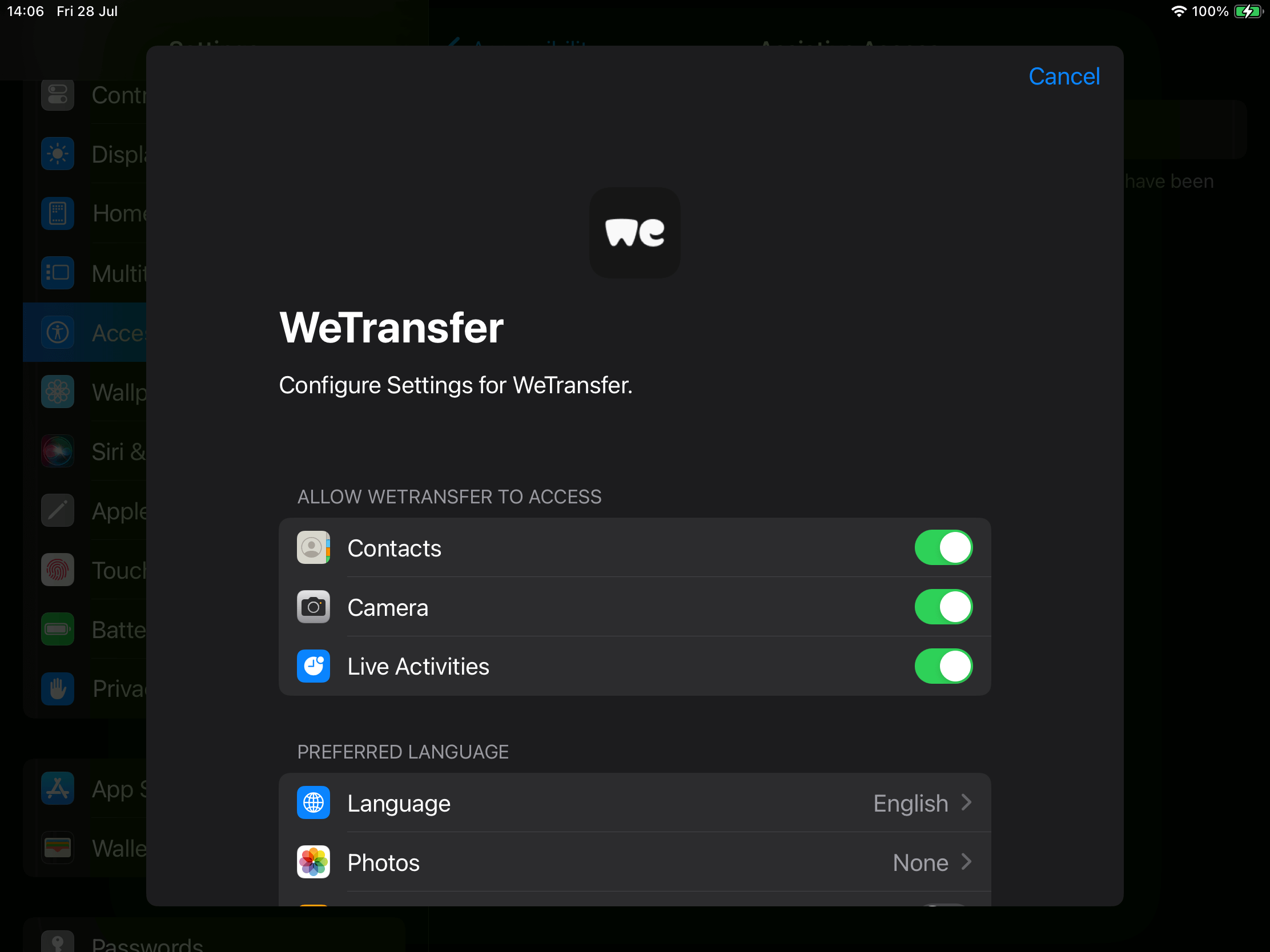
<p>For third party apps, I was delighted to see that, whereas they are not
optimized, we can still set them up specifically for Assistive Access. For
example by settings its language, and allowing access to things like Camera,
Contacts, Live Activities, etc. — depending on what the app supports, of course.</p>

<p><img src="./assets/blog-assets/assistive-access/setup-wetransfer.PNG" alt="An iPad in landscape mode showing the WeTransfer app's setting configuration screen. It shows options like disabling access to the camera, setting its language, and more." /></p>

<h3 id="wrapping-up-the-setup">Wrapping up the Setup</h3>

<p>After setting up the apps, there’s some more screens in the initial setup,
sharing some “things to know” about things that are unavailable in Assistive
Access mode, like notifications, software updates and more. There’s also an
explanation on how you exit Assistive Access (triple-clicking the home button;
I assume this is triple-clicking the side button for devices without a home
button).</p>

<p>… and with that, we’ve set up Assistive Access — now let’s explore it!</p>

<h2 id="assistive-access-experience">Assistive Access Experience</h2>

<p>Enabling Assistive Access can be done through the Accessibility settings, or the
Accessibility Shortcut after adding it there. It does not seem to work via Siri
(just yet).</p>

<h3 id="general">General</h3>

<p>Requiring an “admin” password to enter and exit Assistive Access means users
can’t accidentally exit the mode. Using the grid appearance, all we see is our
apps in large tiles; no time, battery level, connectivity etc. It also seems
like non-default app icons are not shown if set up.</p>

<p><img src="./assets/blog-assets/assistive-access/aa-entrance.png" alt="An iPad in landscape mode showing the Assistive Access &quot;home screen&quot; using the grid appearance." /></p>

<h3 id="first-party-optimized-apps">First Party (Optimized) Apps</h3>

<h4 id="messages">Messages</h4>

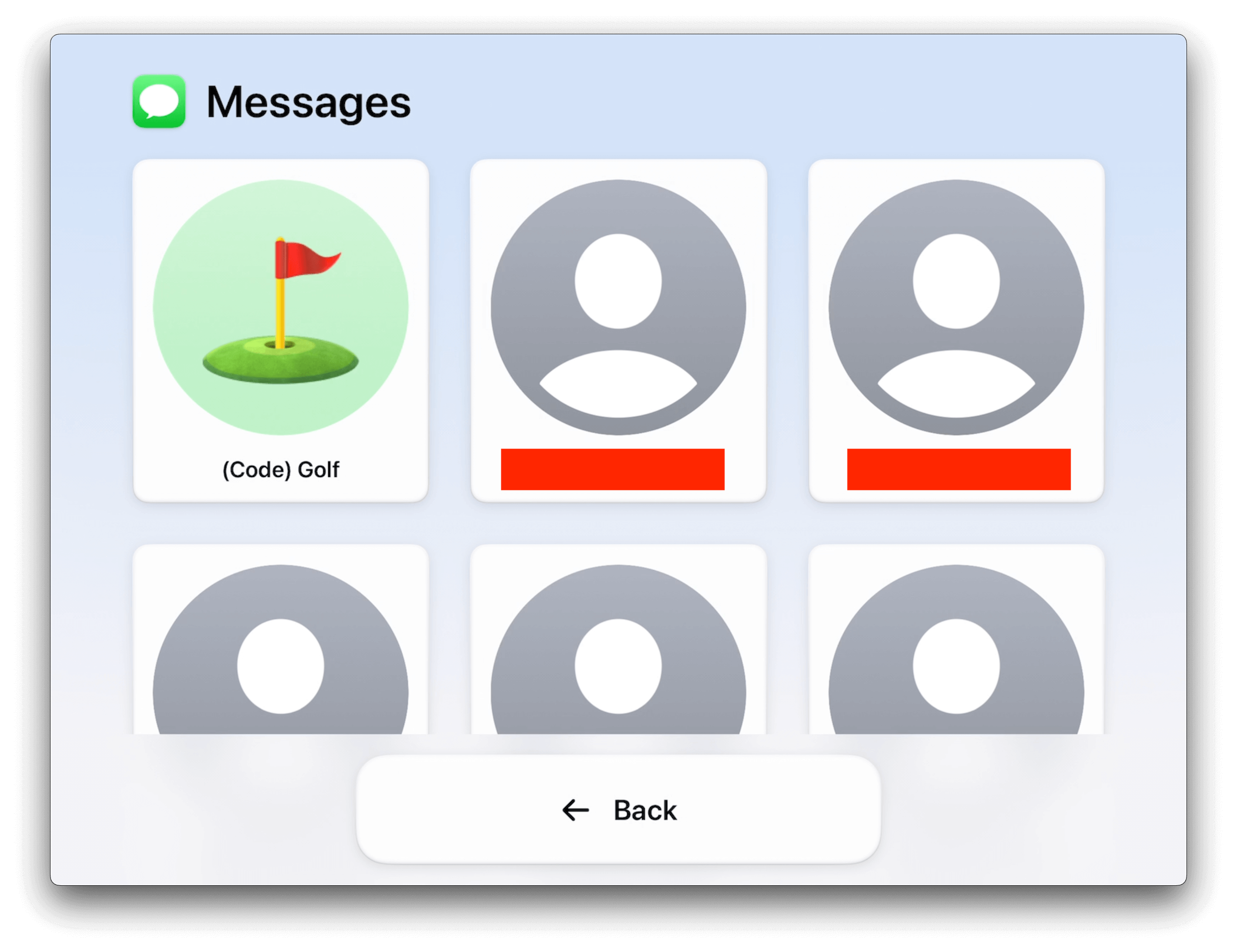
<p>Optimized apps see a similar layout to the grid appearance set, creating a
similar experience to the “home screen”. Like Messages here, for example.</p>

<p><img src="./assets/blog-assets/assistive-access/aa-messages.png" alt="An iPad in landscape mode showing the initial screen of the Messages app, showing large tiles of contacts." /></p>

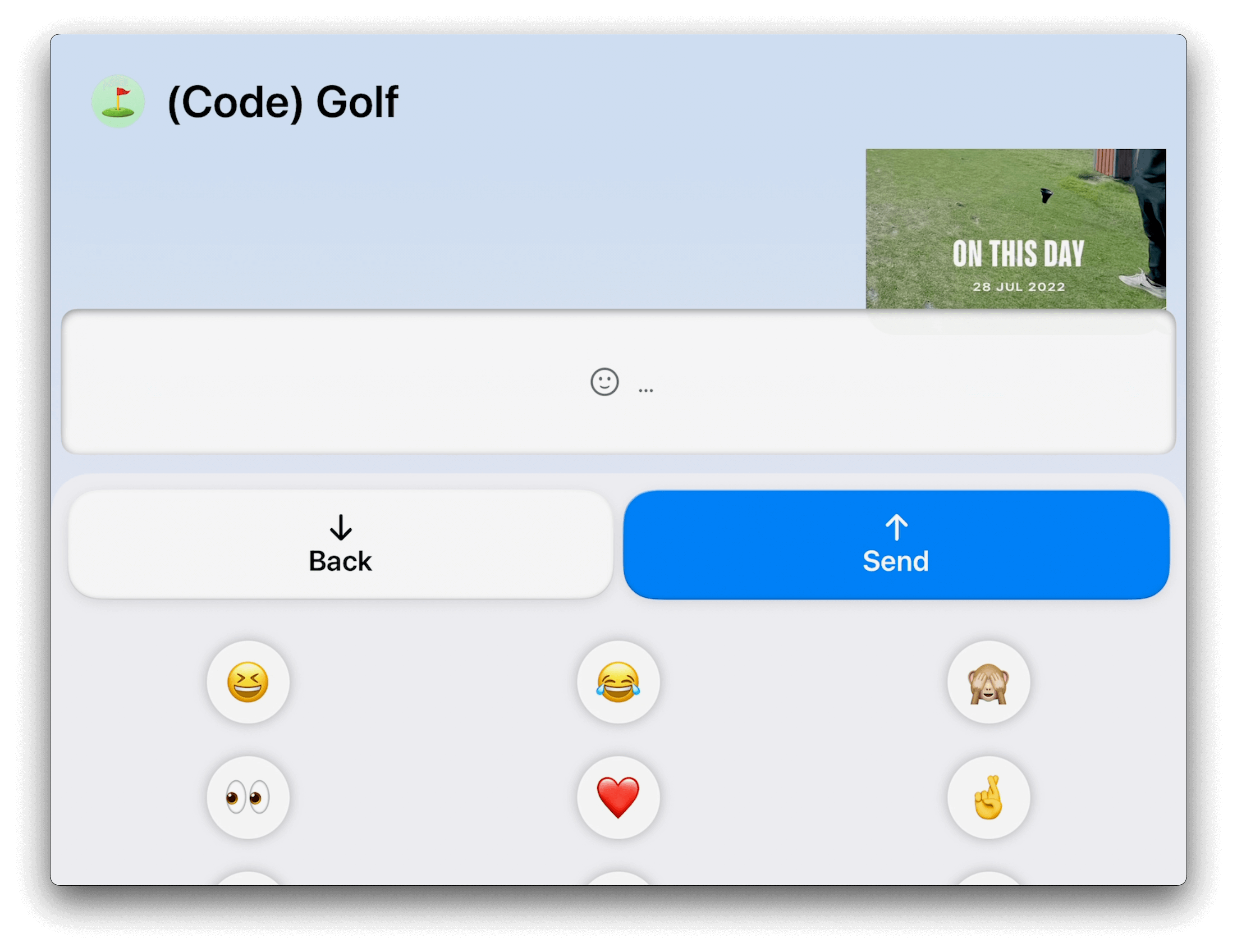
<p>From there, we can enter a conversation and participate in it using, for
example, the emoji keyboard.</p>

<p><img src="./assets/blog-assets/assistive-access/aa-messages-reply-emoji.png" alt="An iPad in landscape mode showing a Messages conversation and its emoji keyboard." /></p>

<h4 id="camera">Camera</h4>

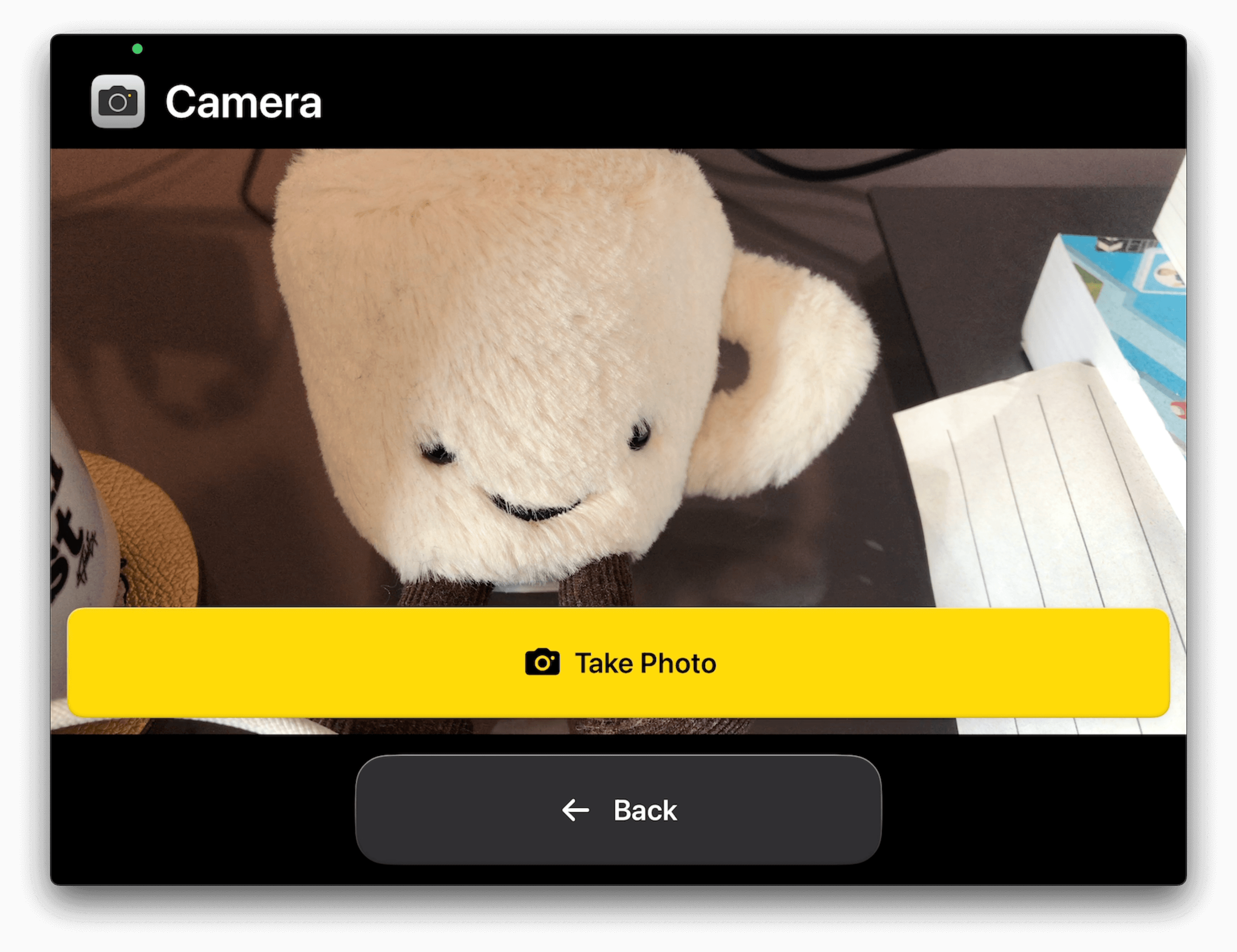
<p>The Camera app is even cleaner and simpler than its (non-Assistive Access)
counterpart. A view finder, and a “Take Photo” button. Easy as that.</p>

<p><img src="./assets/blog-assets/assistive-access/aa-camera.png" alt="An iPad in landscape mode showing the Camera app. A large view finder has a floating &quot;Take Photo&quot; button at the top in bright yellow." /></p>

<h3 id="non-optimized-apps">Non-optimized Apps</h3>

<p>Looking at non-optimized apps… we immediately get a sense of just how large
the gap in experience is between optimized apps and those that are not.
Non-optimized apps only get a “Back” button that is not context-aware, but
instead always goes back to the home screen.</p>

<p><img src="./assets/blog-assets/assistive-access/aa-weather.png" alt="An iPad in landscape mode showing the (non-optimized) Weather app. It shows the Weather app as normal with a large &quot;Back&quot; button beneath its UI." /></p>

<p>What’s also interesting is that iPhone-only apps run in Assistive Access mode
on iPad (which admittedly is quite an edge case) seem to “emulate” an iPad
environment of sorts — and that <a href="https://iosdev.space/@bas/110796495277642770">iPad emulation may lead to UI bugs and crashes</a>.</p>

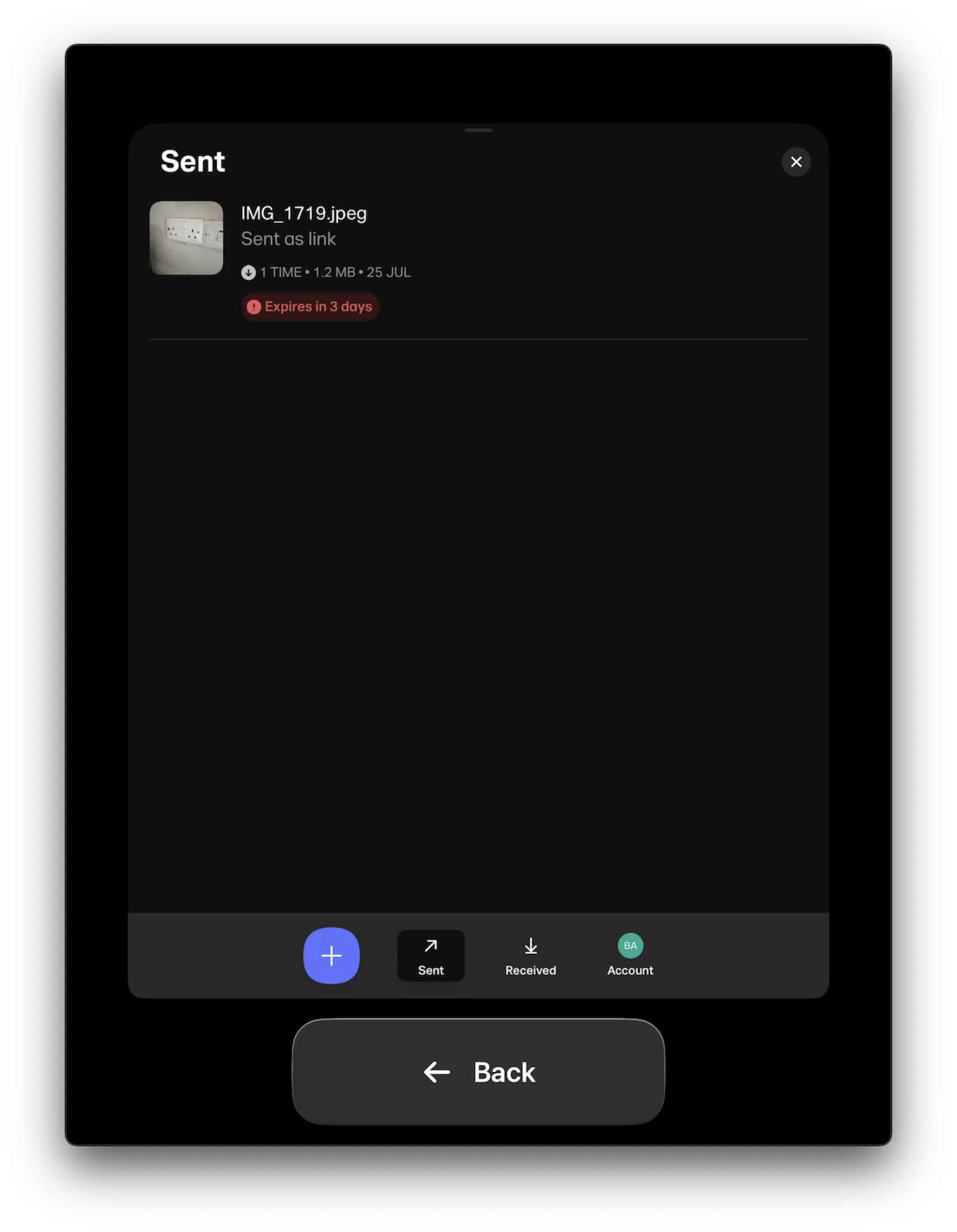
<p><img src="./assets/blog-assets/assistive-access/iPad-emu.png" alt="An iPad in landscape mode showing the (non-optimized, iPhone only) WeTransfer app. It shows the WeTransfer app in what seems like an iPad environment." /></p>

<h2 id="final-thoughts">Final Thoughts</h2>

<p>It can be seen that this mode is still under construction as there have been
many improvements during the beta cycle, like supporting dark mode, tweaking
how app settings can be changed, and more. It’s got a ways to go, but I’m
beyond exited by this new assistive technology and what it can do.</p>

<p>Furthermore, I am so proud of all the people that have worked, and are working,
on this new assistive technology. You know who you are; you rock!</p>

<p>And now we patiently wait for some more APIs to optimize third party apps..!</p>

<p><sub>Thanks <em>so much</em> to James Sherlock for proofreading!</sub></p>]]></content><author><name></name></author><category term="accessibility" /><summary type="html"><![CDATA[I’ve been meaning to explore Assistive Access, a new accessibility feature announced a few days ahead of this year’s Global Accessibility Awareness Day. It has taken a bit of time, as it didn’t seem to be available in the simulator when the first beta came around, and then life happened… but I was finally able to set it up on my iPad and try it out, and I wanted to share my experience and findings here.]]></summary></entry><entry><title type="html">Cheating the System for Fun and Profit (or how to use macOS Assistive Technologies to test in the Simulator)</title><link href="https://www.basbroek.nl/cheating-the-system-for-fun-and-profit" rel="alternate" type="text/html" title="Cheating the System for Fun and Profit (or how to use macOS Assistive Technologies to test in the Simulator)" /><published>2023-02-13T00:00:00+00:00</published><updated>2023-02-13T00:00:00+00:00</updated><id>https://www.basbroek.nl/cheating-the-system-for-fun-and-profit</id><content type="html" xml:base="https://www.basbroek.nl/cheating-the-system-for-fun-and-profit"><![CDATA[<p>Let’s take a look at how we can use macOS’s assistive technologies, like
VoiceOver and Voice Control, as well as Hover Text, to more easily check some
accessibility in the simulator, without having to deal with the (shortcomings
of) the Accessibility Inspector. This will help you not having to always
immediately run your app on an iOS device to test it… mostly. The
experience on an iOS device should still be your source of truth because of
certain differences between the platforms, even within an iOS app on the Mac.
But we’ll get to that.</p>

<!--more-->

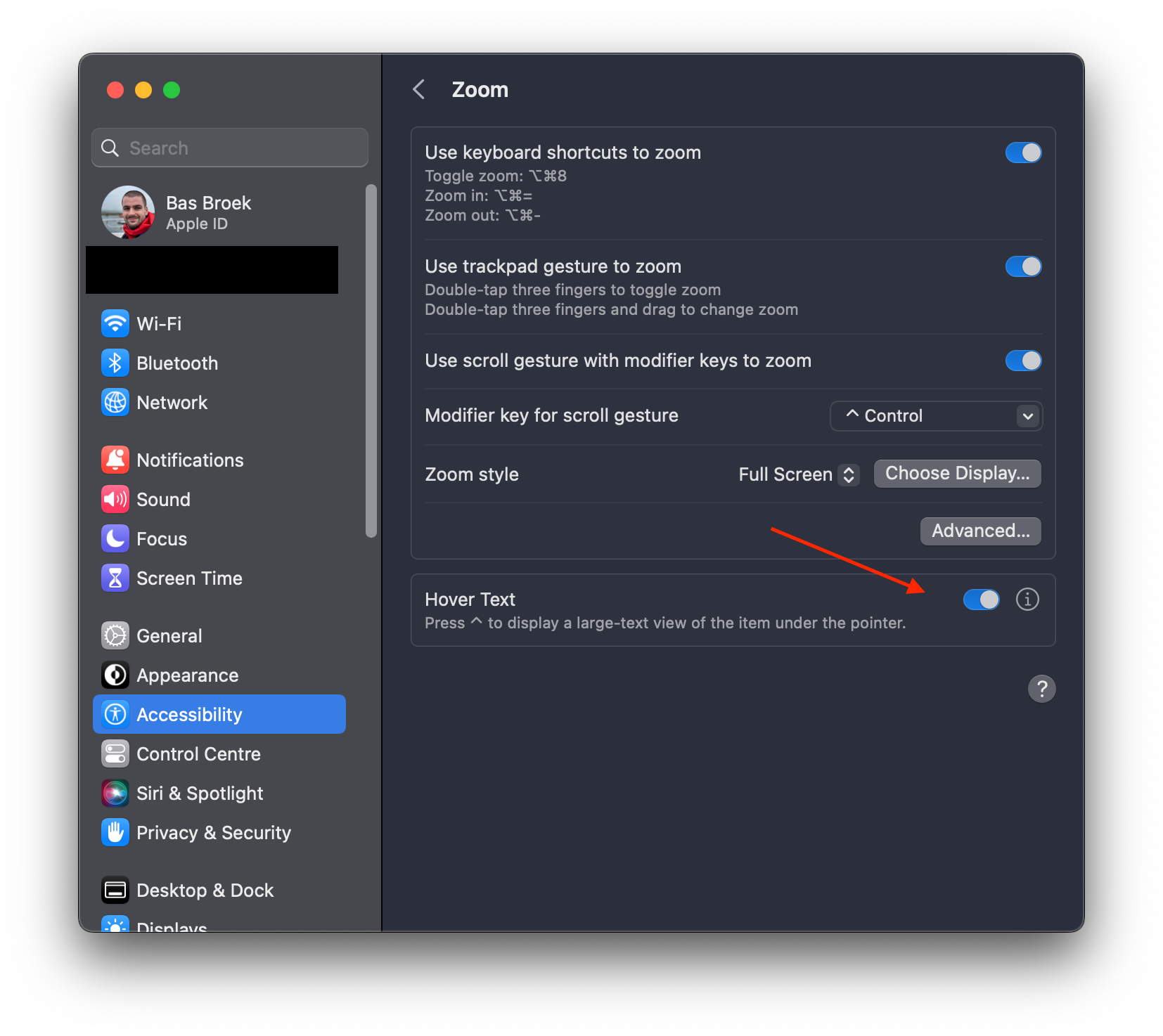
<h2 id="hover-text">Hover Text</h2>

<p>Hover Text is a macOS feature that lets you view text at larger sizes,
typically using a modifier key and hovering over the text or element (hence the
name). What’s neat about it, is that is will show you the accessibility label
of any element, not just text, including in the iOS simulator. Meaning Hover
Text can be a rather quick and frictionless way to get an idea of elements not
having an accessibility label, or having an awkward one. You can find Hover Text
under System Settings (or System Preferences if you’re not yet running macOS 13
Ventura) &gt; Accessibility &gt; Zoom &gt; Hover Text.</p>

<p><img src="./assets/blog-assets/hover-text.png" alt="Hover Text in the macOS system settings." width="750" /></p>

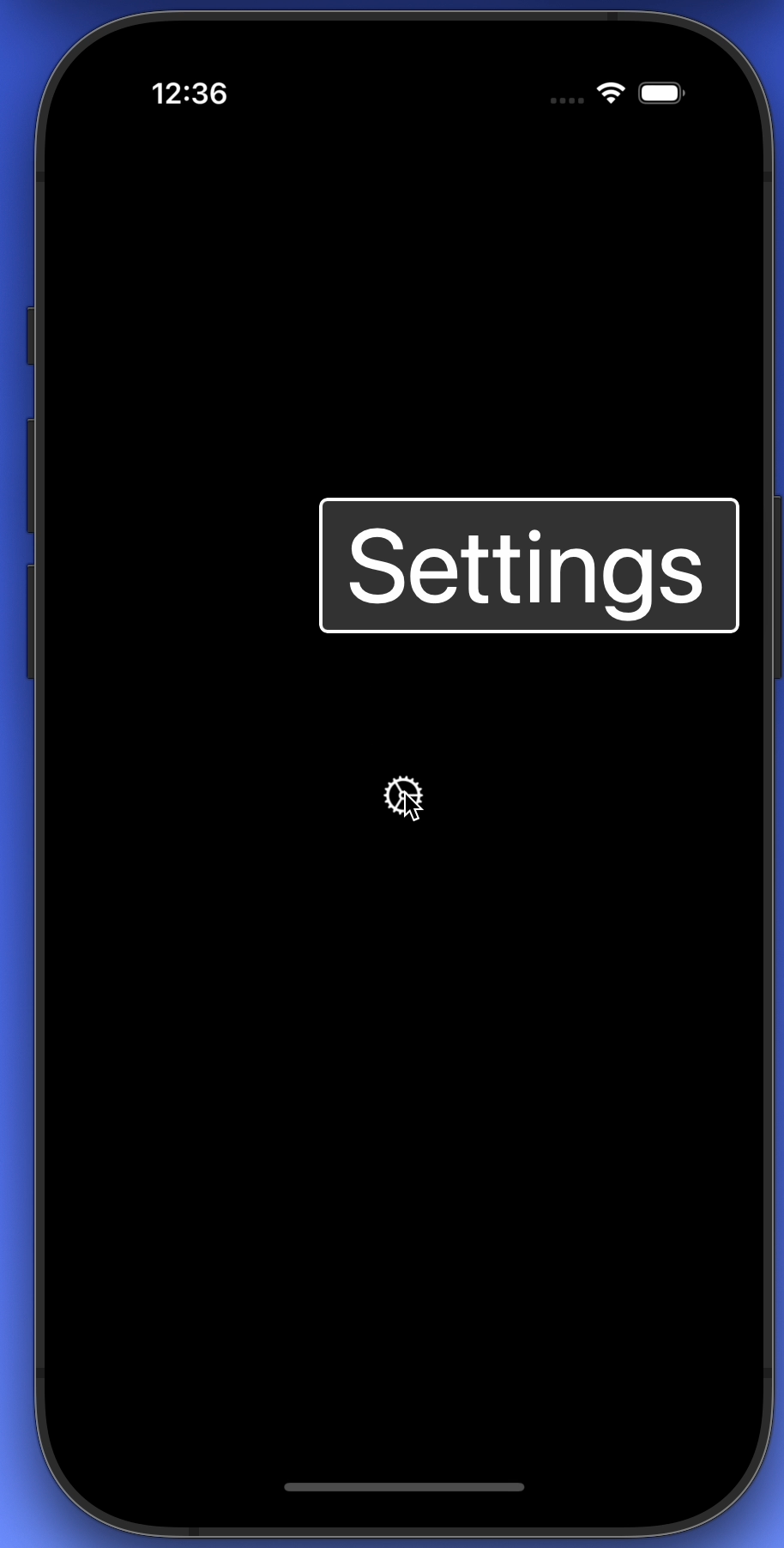
<p>And this is what Hover Text looks like in practice, here as seen in the
simulator.</p>

<p><img src="./assets/blog-assets/hover-text-in-simulator.png" alt="Hover Text in the simulator." width="750" /></p>

<p>A neat start, but let’s take a look at macOS VoiceOver next…</p>

<h2 id="macos-voiceover-ive-never-used-that">macOS VoiceOver?! I’ve never used that!</h2>

<p>Using macOS VoiceOver to test your iOS app on the simulator is a bit of a power
user trick. If you build apps for iOS, there’s a chance you’re not familiar with
VoiceOver on macOS — I wasn’t until joining the macOS Accessibility team at
Apple. There’s a steep learning curve, which people familiar with iOS VoiceOver
will probably know.</p>

<p>System Settings &gt; Accessibility &gt; VoiceOver &gt; Open VoiceOver Training… is a
good place to start, but let’s go over an even quicker quickstart.</p>

<h3 id="macos-voiceover-quickstart">macOS VoiceOver quickstart</h3>

<p>To turn on VoiceOver on macOS, given a keyboard with Touch ID, hold <code class="language-plaintext highlighter-rouge">⌘</code>,
then triple-press the Touch ID button. You can also ask Siri to turn it on or
off.</p>

<p>Then, as you can imagine, VoiceOver navigation is going to be quite different
from iOS. No touch screen, but a keyboard to interact with things. Oh, the
possibilities!</p>

<p>The first thing to know is there’s the so called “VoiceOver modifier” keys. By
default that’ll be either Caps Lock or <code class="language-plaintext highlighter-rouge">⌃</code>+<code class="language-plaintext highlighter-rouge">⌥</code>. I’ve gotten used to the latter.
To navigate, hold your modifier key(s), and use the arrow keys. That’s like a
right (or left) swipe on iOS, and honestly, you’re starting to get off to the
races. Try it out!</p>

<hr />
<p><br /></p>

<p>Activating things like buttons is done with the modifiers keys and the space
bar.</p>

<p>That concludes our quickstart for now, let’s get back to the (fun and) profit.</p>

<h2 id="fun-and-profit">(Fun and) profit</h2>

<p>Macs with Apple’s M-chips can run iOS apps on the Mac — which is practically
the same thing the simulator does, and how Catalyst apps work. And so we can
leverage this with the Simulator app, simply by navigating our macOS VoiceOver
cursor… to our iOS app!</p>

<video width="750" controls="" alt="Navigating into the iOS app running on the simulator using macOS VoiceOver.">
  <source src="./assets/blog-assets/into-ios.mov" type="video/mp4" />
</video>

<p>You can already tell the… awkward bits that come with this, underlining the
importance of treating iOS devices as the source of truth in all cases. I have
no idea why the VoiceOver cursor is off — it normally works okay, but
apparently not in the simplest of demo applications. Rest assured, things work.
We can activate the button, and we can verify VoiceOver labels and elements.</p>

<p>Voice Control also works, but the element position is out of whack there too,
by the looks of it.</p>

<video width="750" controls="" alt="Navigating the iOS app running on the simulator using macOS Voice Control.">
  <source src="./assets/blog-assets/voice-control-macos.mov" type="video/mp4" />
</video>

<p>What’s neat about this, is that it gives us a little more options than with the
Accessibility Inspector, although as you can see, either are going to have some
tricky things to work around. Some things that the simulator can’t do, but using
VoiceOver on macOS can, is to navigate and inspect <code class="language-plaintext highlighter-rouge">AXCustomContent</code>, for
example, or to perform the “Zorro gesture”, or maybe more commonly known as the
“accessibility escape” by telling Voice Control to “go back”.</p>

<h3 id="an-axcustomcontent-example">An <code class="language-plaintext highlighter-rouge">AXCustomContent</code> example</h3>

<p>Alright, let me also give an example using custom content, as that is something
that you can’t verify with the accessibility inspector. It also requires a tiny
bit more macOS VoiceOver magic. Let’s take a look first:</p>

<video width="750" controls="" alt="Showing custom content in an iOS app with macOS VoiceOver.">
  <source src="./assets/blog-assets/custom-content.mov" type="video/mp4" />
</video>

<p>You might have been able to read along with the caption panel, but to show the
entries for custom content, use your VoiceOver modifier keys, plus <code class="language-plaintext highlighter-rouge">⌘</code>, plus
<code class="language-plaintext highlighter-rouge">/</code>. You can then navigate through them using just arrow the up and down arrow
keys, without any modifiers.</p>

<p>These menu-style actions are what are the equivalent of iOS Rotors. And so as
you might imagine, this only scratches the surface of the capabilities of just
rotors on macOS. Ah, the power of macOS VoiceOver… perhaps that’ll leave you
wanting to explore it further. (Pro tip: the hints will help you gradually
explore more options and actions as you come across them, like custom actions
and custom content.)</p>

<h2 id="with-great-power">With great power…</h2>

<p>Making use of the tools we have to help ourselves is something I really like
exploring. Sometimes things don’t work out, other times we take away these
(little) things that can help our workflows and more. I’ve been using these
tricks to drastically improve my testing workflows… and to have a lot of fun!</p>

<p>Whilst these tricks are a niche way of testing your iOS apps for accessibility,
I feel they are great to know about and add to your toolbelt. But beware, as
like (unfortunately) is also true for the accessibility inspector, <a href="/custom-tab-bar-accessibility">only an
actual iOS device</a> is going to give you the
exact experience your user has.</p>

<p>macOS is, as we know, quite different from iOS, and looking at the
aforementioned iOS on Mac and Catalyst and how they work, they will change
certain behaviors compared to on iOS. A major example is navigation: whilst on
iOS we have a (mostly) flat structure, macOS knows a rich, hierarchical
structure. What does that mean, you might wonder? Well, containers like table
and collection views are to be drilled into. Where on iOS you’ll navigate a
table view cell by cell (unless you have a (custom) rotor), on macOS you’ll be
drilling into it using the VoiceOver keys plus down arrow (to enter), and up
arrow (to exit).</p>

<p>So: always test on actual iOS devices, too, and take those as your source of
truth.</p>

<p>And oh yeah… I’ve just been reminded how lucky we are that the iOS screen
recording automatically includes Voice Control and VoiceOver sounds… which
is not true for macOS. Guess I’ll add that to the pile of Feedbacks to file as
a result of writing this.</p>

<hr />
<p><br /></p>

<p>I’d love to hear from you if you’ve tried this out!</p>

<p><em>Special thanks to Chris Wu, Nathan Tannar and Rob Whitaker for their
proofreading and feedback!</em></p>]]></content><author><name></name></author><category term="accessibility" /><summary type="html"><![CDATA[Let’s take a look at how we can use macOS’s assistive technologies, like VoiceOver and Voice Control, as well as Hover Text, to more easily check some accessibility in the simulator, without having to deal with the (shortcomings of) the Accessibility Inspector. This will help you not having to always immediately run your app on an iOS device to test it… mostly. The experience on an iOS device should still be your source of truth because of certain differences between the platforms, even within an iOS app on the Mac. But we’ll get to that.]]></summary></entry><entry><title type="html">On Fixing vs Patching</title><link href="https://www.basbroek.nl/on-fixing-vs-patching" rel="alternate" type="text/html" title="On Fixing vs Patching" /><published>2022-09-05T00:00:00+00:00</published><updated>2022-09-05T00:00:00+00:00</updated><id>https://www.basbroek.nl/on-fixing-vs-patching</id><content type="html" xml:base="https://www.basbroek.nl/on-fixing-vs-patching"><![CDATA[<p>We programmers have — most likely — all fixed a bunch of bugs in our time. That edge case that was overlooked. That out of bounds error that we thought could never occur. That early return being hit because that one thing could be <code class="language-plaintext highlighter-rouge">nil</code> after all. That crash because the constant that wouldn’t change… did in fact change.</p>

<p>Not that I’m speaking from experience… why’d you ask?</p>

<hr />
<p><br /></p>

<p>These things happen. And arguably, it’s OK for them to happen. Yes, there’s a miriad of things we do — conciously or not — to <em>prevent</em> these things from happening. In the end, however, it’s <em>because</em> of bugs, of issues, of changes, that we programmers are, well, programmers. We’d not be needed otherwise, I’d argue.</p>

<h1 id="fixing">Fixing</h1>

<p>One of my favorite things in programming is being able to write a piece of software that is well-defined — as well as moulding a thought, requirement, or project to become well-defined.</p>

<p>It’s then, with that knowledge, we can work in a structured way. We can define logic that can be tested. Well tested. With test code that not only becomes as important as the code we ship, but also as understandable, as readable.</p>

<p>The magic moment kicks in when an issue or (other) edge case is found — as it eventually always will, even though our software was so well-defined. We’re humans after all, and we do seem to make mistakes.</p>

<p>I digress… but now we can write a new test — with our now known failing input — and have that test fail. Of course. But this is great! We have a newly defined input with a certain unexpected output. We use our newfound knowledge to fix the bug, <em>et voilà</em>, the test passes. What a wonderful feeling.</p>

<hr />
<p><br /></p>

<p>A perfect scenario, one might argue, but one that isn’t always as straightforward. Not as straightforward to write that (as) testable code. Not as straightforward to understand the underlying issue and apply a fix. Not as straightforward to find that issue or unexpected output in the first place.</p>

<p>We could see the code and the accompanying test that fixes the issue as some form of “pure” documentation: you can’t argue, by reading the fix and the test, that the issue <em>isn’t</em> fixed. And you can logically reason about it. (Of course, this isn’t exactly true. We could introduce a new issue with our fix, of course, especially when dealing with more complex challenges. Nor should we expect anyone to take a fix — however trivial — for granted, or to understand said fix in exactly the ways our mind does).</p>

<h1 id="documentation">Documentation</h1>

<p>While our code is <em>a</em> form of documentation, we’re all humans, and we all think differently. Have a different perspective.</p>

<p>When it comes to documentation, different things work (better) for different people. There’s no one way to document things. One might prefer video content over documentation that is written. Examples can make something tangible. That oh-so-understandable code does not hold up when someone unfamiliar with code is looking into things. Or your future self, not having used that programming language in a while.</p>

<p>Having things documented in multiple forms can help keep things able to be picked up by different people, at their own speed, in their own way. And having that kind of track record of how we work will help us keep a better understanding of our software (this, of course, applies to <em>much more</em> than just fixing issues, like processes, decisions, and proposals).</p>

<p>Documentation, too, can help finding issues, non-expected outputs, and bugs, too. We certainly don’t always have a well-defined bug report, failing input, or other tangible information to guide us in the correct — or even <em>a</em> — direction. And so we should be extra careful in tracing our steps, documenting our findings, and understanding our path from an issue being flagged to understanding (and, I hope, fixing!) it.</p>

<h1 id="patching">Patching</h1>

<p>… or, not. It just seems to happen that we’ll not always find the underlying issue, understand what’s responsible for that crash, or get the time to investigate something not criticial enough at that point in time.</p>

<p>What I’ve seen happen in this case, from time to time, is that rather than <em>fixing</em> the issue, we <em>patch</em> it. Whilst you could argue that patching something would also fix it, what I mean with patching is the fact of preventing the issue at hand without having a full understanding of why it happens in the first place.</p>

<p>For example, if we’re unexpectedly returning <code class="language-plaintext highlighter-rouge">nil</code> given some unknown input, we can default to returning, say, an empty string <code class="language-plaintext highlighter-rouge">””</code>. If we know that sometimes we index into an array but go out of bounds, we can return early if we determine we would go out of bounds.</p>

<p>As we can see, however, these examples don’t <em>fix</em> the issue. They dodge it, move around it, <em>ignore</em> it. It’s that I see as a <em>patch</em>. And, alongside it, as something that <em>could</em>, down the line, cause undefined behavior — as in, it can cause us to evaluate code at a later point with input we don’t expect. Luckily for us, we have (among others) <a href="/but-that-should-work">assertions</a> to help us there.</p>

<hr />
<p><br /></p>

<p>Patching issues isn’t something objectively bad. Sometimes we deal with a complex piece of code and we’ll have to make do with what we <em>do</em> know. Add that extra piece of logging to help catch that gnarly input causes us problems. Write a workaround because an API that’s not in our hands causes issues.</p>

<p>It’s in those cases that proper documentation (and potential follow-up steps) is written. That means, first of all, to know and understand the difference between a patch and a fix. And the ideal goal of that documentation would be, as I’d argue the ideal goal of <em>any</em> documentation would be, is for anyone else (within reason, like others within the company, or other people in the team) to be able to go through it, learn from it, and figure out next steps.</p>

<p>Oh and as it turns out, doing that isn’t easy. Isn’t straightforward. Takes time, energy, experience and communication. But we can all try and learn.</p>

<h1 id="conclusion">Conclusion</h1>

<p>Working on projects, we’ll all at some point have to deal with bugs, unexpected behavior, and other issues. They will all be of different magnitude and size, and we’ll have to approach them accordingly.</p>

<p>Whereas in cases we can be confident of a fix, and document it, in other cases fixing something isn’t straightforward, or (in the short term) feasable at all. It’s then that we may be <em>patching</em> issues, and making sure there’s a shared understanding of what has (not been) done, as well as providing documentation on the process and next steps, is a crucial step that should not be neglected.</p>]]></content><author><name></name></author><category term="programming" /><summary type="html"><![CDATA[We programmers have — most likely — all fixed a bunch of bugs in our time. That edge case that was overlooked. That out of bounds error that we thought could never occur. That early return being hit because that one thing could be nil after all. That crash because the constant that wouldn’t change… did in fact change. Not that I’m speaking from experience… why’d you ask? These things happen. And arguably, it’s OK for them to happen. Yes, there’s a miriad of things we do — conciously or not — to prevent these things from happening. In the end, however, it’s because of bugs, of issues, of changes, that we programmers are, well, programmers. We’d not be needed otherwise, I’d argue. Fixing One of my favorite things in programming is being able to write a piece of software that is well-defined — as well as moulding a thought, requirement, or project to become well-defined. It’s then, with that knowledge, we can work in a structured way. We can define logic that can be tested. Well tested. With test code that not only becomes as important as the code we ship, but also as understandable, as readable. The magic moment kicks in when an issue or (other) edge case is found — as it eventually always will, even though our software was so well-defined. We’re humans after all, and we do seem to make mistakes. I digress… but now we can write a new test — with our now known failing input — and have that test fail. Of course. But this is great! We have a newly defined input with a certain unexpected output. We use our newfound knowledge to fix the bug, et voilà, the test passes. What a wonderful feeling. A perfect scenario, one might argue, but one that isn’t always as straightforward. Not as straightforward to write that (as) testable code. Not as straightforward to understand the underlying issue and apply a fix. Not as straightforward to find that issue or unexpected output in the first place. We could see the code and the accompanying test that fixes the issue as some form of “pure” documentation: you can’t argue, by reading the fix and the test, that the issue isn’t fixed. And you can logically reason about it. (Of course, this isn’t exactly true. We could introduce a new issue with our fix, of course, especially when dealing with more complex challenges. Nor should we expect anyone to take a fix — however trivial — for granted, or to understand said fix in exactly the ways our mind does). Documentation While our code is a form of documentation, we’re all humans, and we all think differently. Have a different perspective. When it comes to documentation, different things work (better) for different people. There’s no one way to document things. One might prefer video content over documentation that is written. Examples can make something tangible. That oh-so-understandable code does not hold up when someone unfamiliar with code is looking into things. Or your future self, not having used that programming language in a while. Having things documented in multiple forms can help keep things able to be picked up by different people, at their own speed, in their own way. And having that kind of track record of how we work will help us keep a better understanding of our software (this, of course, applies to much more than just fixing issues, like processes, decisions, and proposals). Documentation, too, can help finding issues, non-expected outputs, and bugs, too. We certainly don’t always have a well-defined bug report, failing input, or other tangible information to guide us in the correct — or even a — direction. And so we should be extra careful in tracing our steps, documenting our findings, and understanding our path from an issue being flagged to understanding (and, I hope, fixing!) it. Patching … or, not. It just seems to happen that we’ll not always find the underlying issue, understand what’s responsible for that crash, or get the time to investigate something not criticial enough at that point in time. What I’ve seen happen in this case, from time to time, is that rather than fixing the issue, we patch it. Whilst you could argue that patching something would also fix it, what I mean with patching is the fact of preventing the issue at hand without having a full understanding of why it happens in the first place. For example, if we’re unexpectedly returning nil given some unknown input, we can default to returning, say, an empty string ””. If we know that sometimes we index into an array but go out of bounds, we can return early if we determine we would go out of bounds. As we can see, however, these examples don’t fix the issue. They dodge it, move around it, ignore it. It’s that I see as a patch. And, alongside it, as something that could, down the line, cause undefined behavior — as in, it can cause us to evaluate code at a later point with input we don’t expect. Luckily for us, we have (among others) assertions to help us there. Patching issues isn’t something objectively bad. Sometimes we deal with a complex piece of code and we’ll have to make do with what we do know. Add that extra piece of logging to help catch that gnarly input causes us problems. Write a workaround because an API that’s not in our hands causes issues. It’s in those cases that proper documentation (and potential follow-up steps) is written. That means, first of all, to know and understand the difference between a patch and a fix. And the ideal goal of that documentation would be, as I’d argue the ideal goal of any documentation would be, is for anyone else (within reason, like others within the company, or other people in the team) to be able to go through it, learn from it, and figure out next steps. Oh and as it turns out, doing that isn’t easy. Isn’t straightforward. Takes time, energy, experience and communication. But we can all try and learn. Conclusion Working on projects, we’ll all at some point have to deal with bugs, unexpected behavior, and other issues. They will all be of different magnitude and size, and we’ll have to approach them accordingly. Whereas in cases we can be confident of a fix, and document it, in other cases fixing something isn’t straightforward, or (in the short term) feasable at all. It’s then that we may be patching issues, and making sure there’s a shared understanding of what has (not been) done, as well as providing documentation on the process and next steps, is a crucial step that should not be neglected.]]></summary></entry><entry><title type="html">Building an Accessible Custom Tab Bar</title><link href="https://www.basbroek.nl/custom-tab-bar-accessibility" rel="alternate" type="text/html" title="Building an Accessible Custom Tab Bar" /><published>2022-04-19T00:00:00+00:00</published><updated>2022-04-19T00:00:00+00:00</updated><id>https://www.basbroek.nl/custom-tab-bar-large-content-viewer</id><content type="html" xml:base="https://www.basbroek.nl/custom-tab-bar-accessibility"><![CDATA[<p>Recently, I’ve been working on making a custom tab bar in our app accessible.
That is, make it work just like a native, out-of-the-box <code class="language-plaintext highlighter-rouge">UITabBarController</code>.</p>

<!--more-->

<p>Whilst possible, it was far from straightforward. In this post, I want to talk
about matching the built-in behavior, by supporting the Large Content Viewer as
well as the magical (as you will see later) <code class="language-plaintext highlighter-rouge">.tabBar</code> trait.</p>

<hr />
<p><br /></p>

<p>You can find the code from this blog post <a href="https://github.com/BasThomas/Candybar">on GitHub</a>.</p>

<h2 id="large-content-viewer">Large Content Viewer</h2>

<p>To start off, let’s take a look at what our custom tab bar looks like, and how
we’ve built it.</p>

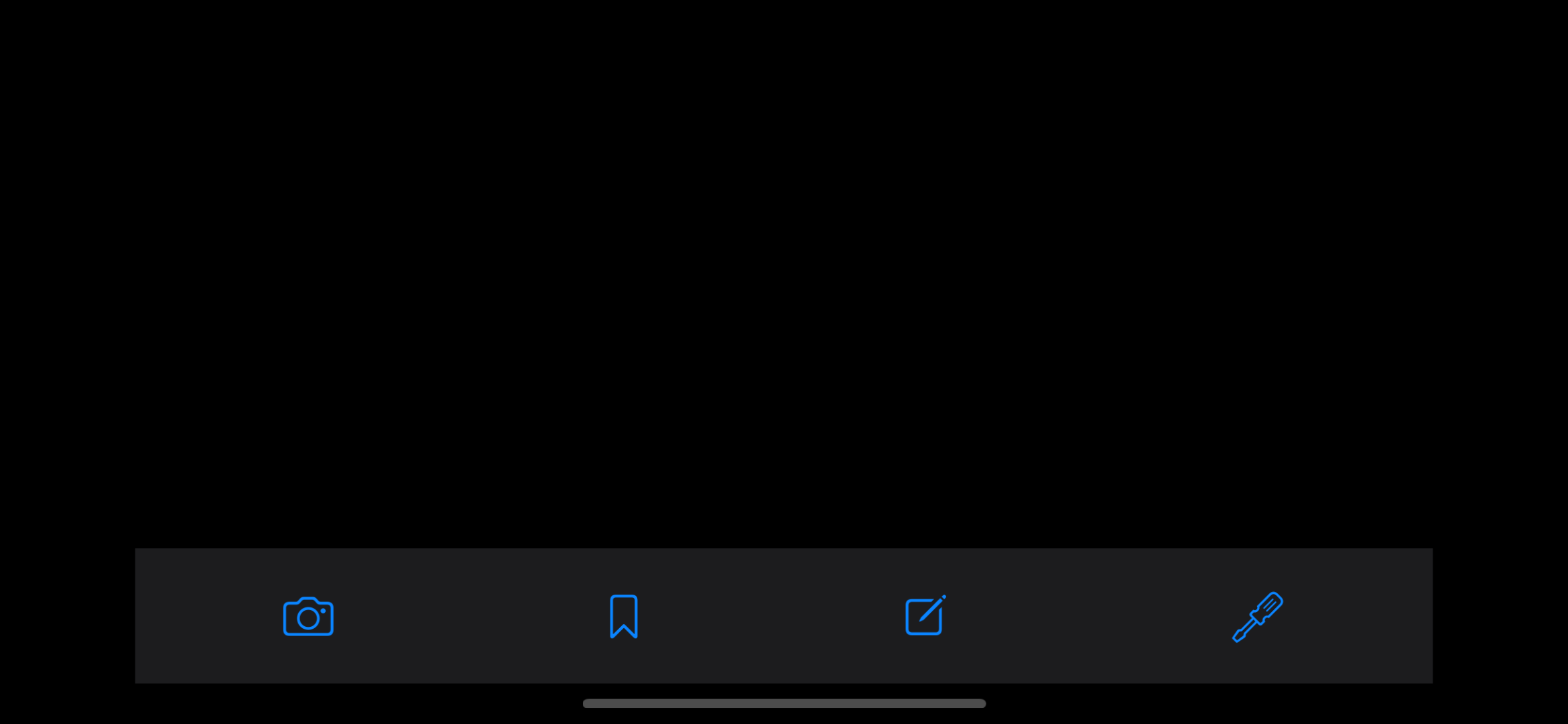
<p><img src="./assets/blog-assets/custom-tab-bar.png" alt="A blank iPhone screen showing a custom tab bar with camera, bookmark, compose and screwdriver buttons." /></p>

<p>What we’re looking at is a blank, plain <code class="language-plaintext highlighter-rouge">UIViewController</code> that contains a
<code class="language-plaintext highlighter-rouge">UIStackView</code>. That stack view has four buttons added as arranged subviews.</p>

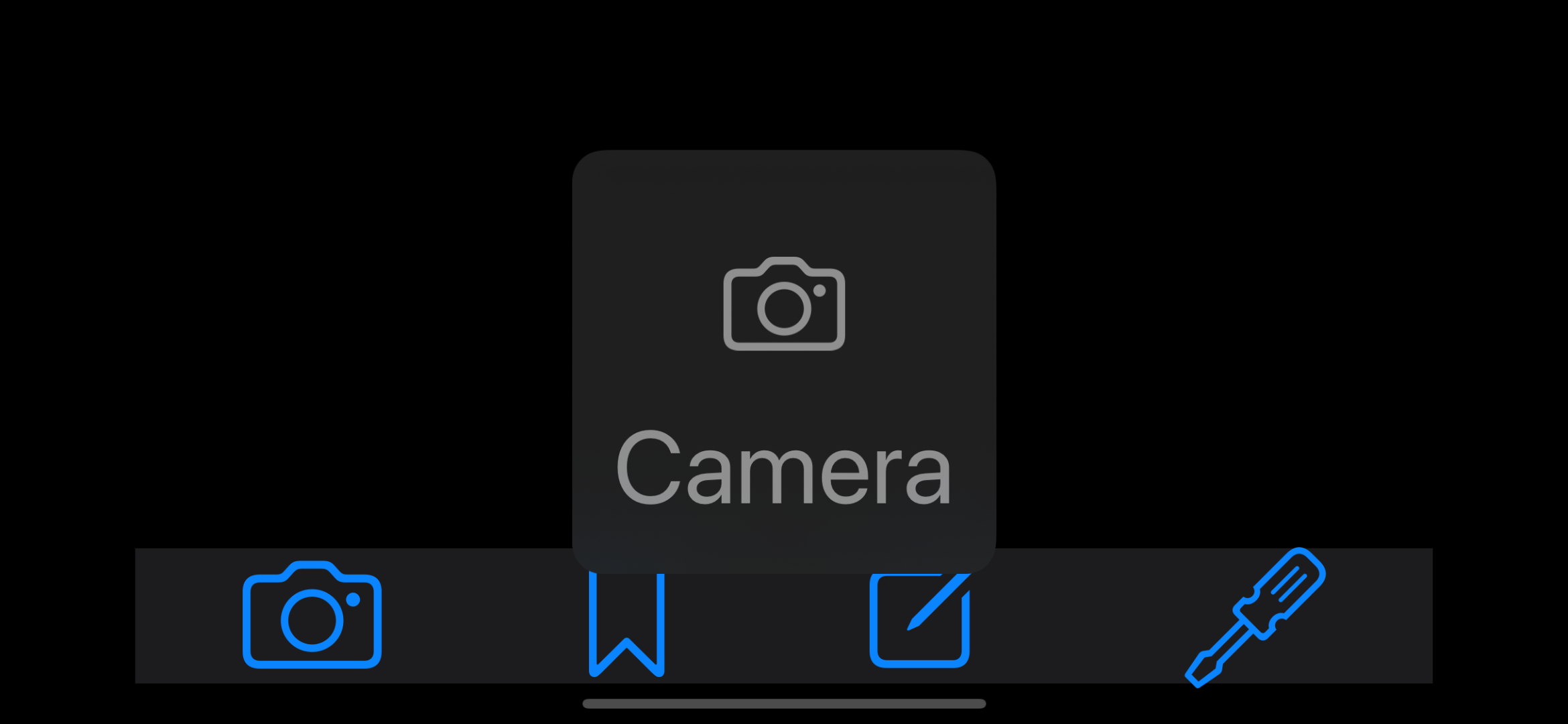
<p>Grand. So these are buttons, which we can tap and react on. Now, we want to
make sure we can long-press these to show the large content viewer; something
that comes out-of-the-box with <code class="language-plaintext highlighter-rouge">UITabBarController</code>. To do so, we first set
the font size to one of the accessibility sizes; it will not appear otherwise.</p>

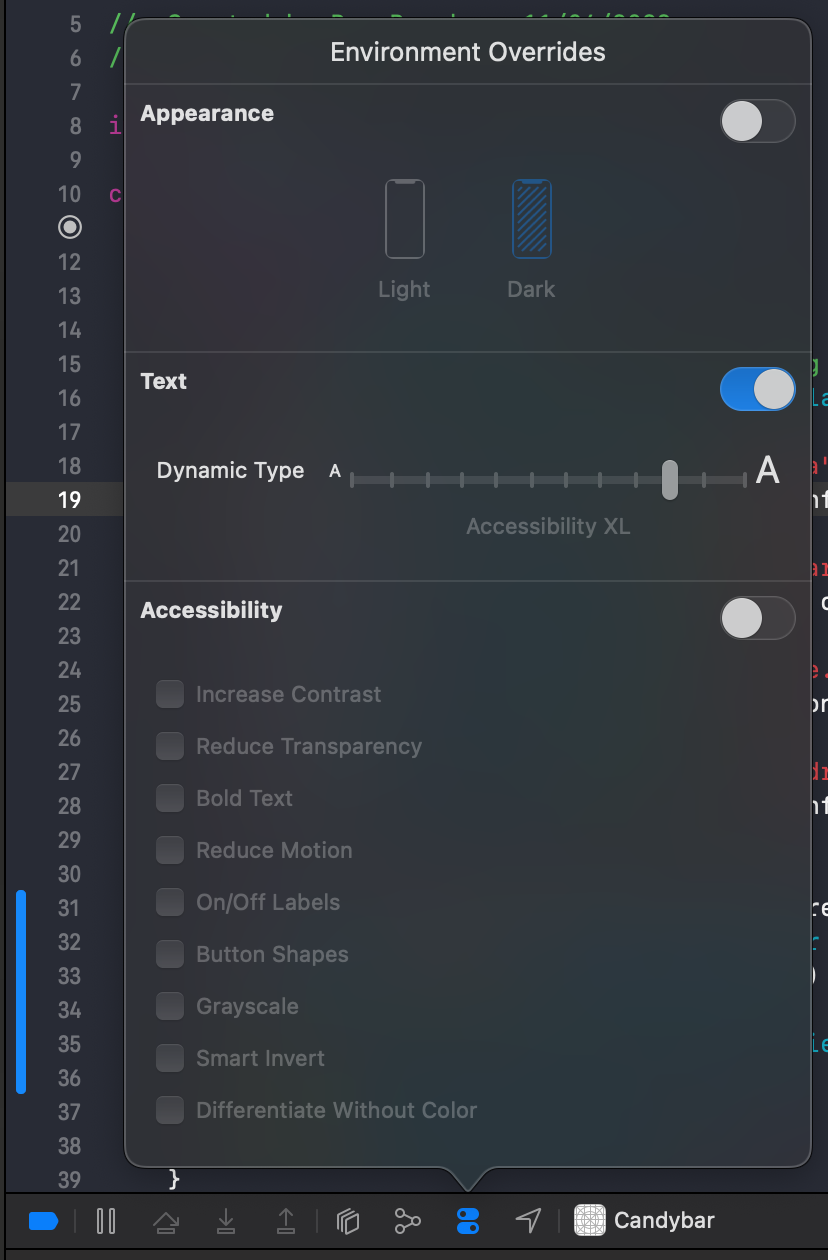
<p>To do so, navigate to the debug bar at the top of the debug area in Xcode,
activate “Environment Overrides”, enable “Text” and set the Dynamic Type to
something in the Accessibility category.</p>

<p><img src="./assets/blog-assets/environment-overrides.png" alt="The Environment Overrides in the Xcode debug bar." /></p>

<p>Alternatively, you can do the same in the Accessibility Inspector’s “settings”
tab.</p>

<p><img src="./assets/blog-assets/accessibility-inspector-settings.png" alt="The Accessibility Inspector's settings tab." /></p>

<p>Alright, so… here we go! Long press on a button…</p>

<p>… and observe nothing happens. What gives?</p>

<h3 id="not-all-buttons-are-created-equal">Not All Buttons Are Created Equal</h3>

<p>Now, Apple recommends to always <em>prefer</em> elements that can grow to smaller or
bigger sizes. In many cases, that’s what you want — and you will not need to
add support for the large content viewer, as the elements themselves grow.</p>

<p>But as you can imagine, this becomes tricky in certain scenarios, and a tab
bar is one of them. Growing the tab bar means we’re taking up more and more
screen real estate, meaning we have less space to show the rest of our app.</p>

<p>Hence why we want to support the Large Content Viewer for these buttons in our
case.</p>

<p>To do so, we use the <code class="language-plaintext highlighter-rouge">showsLargeContentViewer</code> API that is available on
<code class="language-plaintext highlighter-rouge">UIView</code>.</p>

<div class="language-swift highlighter-rouge"><div class="highlight"><pre class="highlight"><code><span class="n">button</span><span class="o">.</span><span class="n">showsLargeContentViewer</span> <span class="o">=</span> <span class="kc">true</span>
</code></pre></div></div>

<p>Alternatively, we can also set a <code class="language-plaintext highlighter-rouge">largeContentTitle</code> to go alongside the viewer,
indicating the title of our tab/button.</p>

<div class="language-swift highlighter-rouge"><div class="highlight"><pre class="highlight"><code><span class="n">button</span><span class="o">.</span><span class="n">largeContentTitle</span> <span class="o">=</span> <span class="kt">NSLocalizedString</span><span class="p">(</span>
    <span class="s">"Camera"</span><span class="p">,</span> 
    <span class="nv">comment</span><span class="p">:</span> <span class="s">"The title describing the `Camera` tab."</span>
<span class="p">)</span>
</code></pre></div></div>

<p>Build and run the app and…</p>

<p>Oh no, it still does not work?!</p>

<h3 id="documentation-to-the-rescue-kind-of">Documentation to the Rescue, Kind of</h3>

<p><a href="https://developer.apple.com/documentation/uikit/uiview/3183941-showslargecontentviewer"><code class="language-plaintext highlighter-rouge">showsLargeContentViewer</code></a>’s documentation mentions:</p>

<blockquote>
  <p>For this property to take effect, the view must have a
<code class="language-plaintext highlighter-rouge">UILargeContentViewerInteraction</code>.</p>
</blockquote>

<p>… yet neither <code class="language-plaintext highlighter-rouge">largeContentTitle</code> nor <code class="language-plaintext highlighter-rouge">largeContentImage</code>’s
documentation do. OK, so let’s add the interaction:</p>

<div class="language-swift highlighter-rouge"><div class="highlight"><pre class="highlight"><code><span class="n">bar</span><span class="o">.</span><span class="nf">addInteraction</span><span class="p">(</span><span class="kt">UILargeContentViewerInteraction</span><span class="p">())</span>
</code></pre></div></div>

<p>Tada!</p>

<p><img src="./assets/blog-assets/tab-bar-large-content-viewer.png" alt="The custom tab bar showing the large content viewer for the camera button." /></p>

<h3 id="one-more-thing">One More Thing…</h3>

<p>Now, there’s one more thing we can do to improve this. The <code class="language-plaintext highlighter-rouge">largeContentImage</code>
is picked up by the <code class="language-plaintext highlighter-rouge">UIButton</code>’s image, but it may not really grow to take up
the space in the large content viewer. Even though that’s quite a big part of
why we have this in the first place. Make sure that if you need this and enable
it, you may want to “preserve vector data” so that the image doesn’t get blurry
when scaled up.</p>

<div class="language-swift highlighter-rouge"><div class="highlight"><pre class="highlight"><code><span class="n">button</span><span class="o">.</span><span class="n">scalesLargeContentImage</span> <span class="o">=</span> <span class="kc">true</span>
</code></pre></div></div>

<p>All of the above is also neatly summed up and touched upon by <a href="https://twitter.com/Sommer">Sommer Panage</a>
in the WWDC video <a href="https://developer.apple.com/videos/play/wwdc2019/261/">Large Content Viewer - Ensuring Readability for Everyone</a>.</p>

<h2 id="the-tab-bar-trait">The Tab Bar Trait</h2>

<p>The other part of making a custom tab bar accessible, is making sure it is seen
as a tab bar by assistive technologies like VoiceOver. If you’re unsure what
that feels like, try out a standard tab bar in an app by navigating through it
with VoiceOver; it’ll add a bunch of great information, like which tab you’re
on, and that we’re dealing with a tab bar in the first place — as well as
making a container element for it so it’s easier to navigate to.</p>

<p>Whilst in theory this seemed straightforward in my head — add a trait to those
buttons — it wasn’t as easy as I’d hoped.</p>

<p>First of all, you don’t add a trait to the buttons themselves; instead you add
a trait to the parent view — the “tab bar” if you wish. Which feels… weird.
It’s certainly not something common in terms of assigning traits.</p>

<p>Anyway. So <a href="https://developer.apple.com/documentation/uikit/uiaccessibility/uiaccessibilitytraits/1648592-tabbar">the documentation</a>
further mentions that</p>

<blockquote>
  <p>If an accessibility element has this trait, return <code class="language-plaintext highlighter-rouge">false</code> for 
<a href="https://developer.apple.com/documentation/objectivec/nsobject/1615141-isaccessibilityelement"><code class="language-plaintext highlighter-rouge">isAccessibilityElement</code></a>.</p>
</blockquote>

<p>When I read this, on top of the unusual way of adding a trait to the parent
view, a visualization of my brain would’ve been this:</p>

<p><img src="./assets/blog-assets/question-mark.gif" alt="A person looking confused, with question marks around their face." /></p>

<p>Anyhow, I tried doing what the documentation said:</p>

<div class="language-swift highlighter-rouge"><div class="highlight"><pre class="highlight"><code><span class="n">tabBar</span><span class="o">.</span><span class="n">accessibilityTraits</span><span class="o">.</span><span class="nf">insert</span><span class="p">(</span><span class="o">.</span><span class="n">tabBar</span><span class="p">)</span>
<span class="n">tabBar</span><span class="o">.</span><span class="n">isAccessibilityElement</span> <span class="o">=</span> <span class="kc">false</span>
</code></pre></div></div>

<p>… and ran the app.</p>

<p><img src="./assets/blog-assets/camera-button-inspector.png" alt="The Accessibility Inspector showing details for the camera button." /></p>

<p>Womp womp. Nothing tab bar related, even though that is what we’d expect given
the documentation. Even the spoken output that is supposed to mimic VoiceOver
just speaks “Camera, button”.</p>

<hr />
<p><br /></p>

<p>So, this was not… completely unexpected? I was (still) confused about how
this was supposed to work in the first place. Or as I described it in the pull
request once <del>I</del> <a href="https://twitter.com/sommer">Sommer</a> finally found out what
was going on:</p>

<blockquote>
  <p>The documentation says that this is how you set up a custom tab
bar. You set the parent element to have the <code class="language-plaintext highlighter-rouge">.tabBar</code> trait, and then you set
<code class="language-plaintext highlighter-rouge">isAccessibilityElement</code> on said parent to false. Which makes like, zero sense.
The API “contract” is to not listen to anything that has
<code class="language-plaintext highlighter-rouge">isAccessibilityElement = false</code> in terms of accessibility. Yet here it does
mean something and has a side effect.</p>

  <p>But so apart from that, things still did not seem to work. Which was like
half expected, as per what I just noted. The inspector says “no bueno”, not
adding the internal “tab” trait. So no idea how to debug this or look into it.</p>

  <p>Turns out, it does actually work… only on device. Even if inspecting the
device with Accessibility Inspector, it’ll still pretend that things don’t work
(read: no tab trait), yet VoiceOver reads everything correctly.</p>

  <p><em>sigh</em> time to write a blog post and file a bunch of radars on this.</p>
</blockquote>

<p>… seems like it all “worked” after all. Thanks (again) to Sommer (and someone
at Apple) for helping me stay sane here.</p>

<video width="750" controls="" alt="A video showing going through the custom tab bar using VoiceOver.">
    <source src="/assets/blog-assets/custom-tab-bar-voiceover.mov" type="video/mp4" />
</video>

<hr />
<p><br /></p>

<p>Now the only thing you’d have left to do is to insert or remove the <code class="language-plaintext highlighter-rouge">.selected</code>
trait of the “active” tab bar item.</p>

<h2 id="conclusion">Conclusion</h2>

<p>Phew. Though there are a bunch of gotchas when it comes to making a custom tab
bar accessible, it is certainly possible. The good thing is that it all works
for the end user. The not so great thing is that implementing it isn’t
straightforward, and the usual tools like the Accessibility Inspector will give
you wrong information.</p>

<p>Hopefully this post has been helpful if you have a custom tab bar in your app
that you want to make accessible!</p>

<p>Let me know your thoughts on this post, and if you have any questions, I’d love
to help!</p>

<hr />
<p><br /></p>

<p>You can find the code from this blog post <a href="https://github.com/BasThomas/Candybar">on GitHub</a>.</p>]]></content><author><name></name></author><category term="swift" /><category term="accessibility" /><summary type="html"><![CDATA[Recently, I’ve been working on making a custom tab bar in our app accessible. That is, make it work just like a native, out-of-the-box UITabBarController.]]></summary></entry><entry><title type="html">Getting Started With Accessibility: Dynamic Type</title><link href="https://www.basbroek.nl/getting-started-dynamic-type" rel="alternate" type="text/html" title="Getting Started With Accessibility: Dynamic Type" /><published>2021-12-31T00:00:00+00:00</published><updated>2021-12-31T00:00:00+00:00</updated><id>https://www.basbroek.nl/getting-started-dynamic-type</id><content type="html" xml:base="https://www.basbroek.nl/getting-started-dynamic-type"><![CDATA[<p>Dynamic Type lets you support different font sizes in your app, so that users
can use a font size that works best for them — from smaller than the system
default, to a whole bunch larger.</p>

<!--more-->

<p>… and there’s some smarts built into the system to support those cases where
you’re limited on space and can’t really show a larger font.</p>

<hr />
<p><br /></p>
<ul>
  <li><a href="/getting-started-voiceover">Getting Started With Accessibility: VoiceOver</a></li>
  <li><a href="/improving-voiceover">Improving Accessibility: VoiceOver</a></li>
  <li><a href="/verifying-voiceover">Verifying VoiceOver: Accessibility Inspector</a></li>
  <li><a href="/improving-voice-control">Improving Accessibility: Voice Control</a></li>
  <li>Getting Started With Accessibility: Dynamic Type (this post)</li>
</ul>

<h2 id="introduction">Introduction</h2>

<p>The <a href="https://developer.apple.com/design/human-interface-guidelines/ios/visual-design/typography/#dynamic-type-sizes">typography documentation</a>
in Apple’s Human Interface Guidelines gives you a good idea of
the thought process behind typography as a whole, and Dynamic Type specifically,
with another page giving more <a href="https://developer.apple.com/design/human-interface-guidelines/accessibility/overview/text-size-and-weight/">accessibility-specific information on how to deal with text</a>.</p>

<p>The good news about Dynamic Type is that it <em>almost</em> comes out of the box. The
bad news is the <em>almost</em>.</p>

<p>To make sure Dynamic Type is supported by your elements, verify that the
<a href="https://developer.apple.com/documentation/uikit/uicontentsizecategoryadjusting/1771731-adjustsfontforcontentsizecategor"><code class="language-plaintext highlighter-rouge">adjustsFontForContentSizeCategory</code></a>
property for your element is set to <code class="language-plaintext highlighter-rouge">true</code>:</p>

<div class="language-swift highlighter-rouge"><div class="highlight"><pre class="highlight"><code><span class="k">let</span> <span class="nv">label</span> <span class="o">=</span> <span class="kt">UILabel</span><span class="p">()</span>
<span class="n">label</span><span class="o">.</span><span class="n">font</span> <span class="o">=</span> <span class="o">.</span><span class="nf">preferredFont</span><span class="p">(</span><span class="nv">forTextStyle</span><span class="p">:</span> <span class="o">.</span><span class="n">body</span><span class="p">)</span>
<span class="n">label</span><span class="o">.</span><span class="n">numberOfLines</span> <span class="o">=</span> <span class="mi">0</span>
<span class="n">label</span><span class="o">.</span><span class="n">adjustsFontForContentSizeCategory</span> <span class="o">=</span> <span class="kc">true</span>
</code></pre></div></div>

<p>Make note of a few things:</p>

<ul>
  <li>We use the <code class="language-plaintext highlighter-rouge">preferredFont(forTextStyle:)</code> API that provides a system font.
If you’re using custom fonts, you’ll have to make sure you are properly
supporting Dynamic Type using <a href="https://developer.apple.com/documentation/uikit/uifontmetrics"><code class="language-plaintext highlighter-rouge">UIFontMetrics</code></a>.</li>
  <li>We set the label’s <code class="language-plaintext highlighter-rouge">numberOfLines</code> property to zero. While this is not a
strict requirement, you can image that with a larger font, more number of lines
may be used to properly layout your text.</li>
  <li>Elements automatically adjust their content size when the preferred content
size changes.</li>
</ul>

<h2 id="testing-and-making-improvements">Testing and Making Improvements</h2>

<p>With this setup for your elements, you’ll be able to take a look at your app as
a whole with a different Dynamic Text size; either by changing the system-wide
text size (<code class="language-plaintext highlighter-rouge">Settings &gt; Accessibility &gt; Display &amp; Text Size &gt; Larger Text Size</code>),
or on a per-app basis (with iOS 15): <code class="language-plaintext highlighter-rouge">Settings &gt; Accessibility &gt; Per-App
Settings &gt; Add App &gt; Larger Text</code>.</p>

<p>You’ll probably note certain places in your app where, because of either the
use of a much smaller (or much larger) font, certain layouts either break or
become a little awkward.</p>

<p>While it’s challenging to keep all layouts optimal regardless of the user’s
text size, one useful API is <a href="https://developer.apple.com/documentation/uikit/uicontentsizecategory/2897444-isaccessibilitycategory"><code class="language-plaintext highlighter-rouge">isAccessibilityCategory</code></a>,
which allows you to query if an accessibility text size is being used. With
that information, you may consider switching your layout from something
horizontal to something vertical, giving you more space to gracefully handle
the larger text size.</p>

<video width="750" controls="" alt="Switching between a horizontal to a vertical layout">
  <source src="/assets/blog-assets/layout.mp4" type="video/mp4" />
</video>

<h3 id="large-content-viewer">Large Content Viewer</h3>

<p>Unfortunately, certain elements are built in such a way that they are not
expected to increase beyond a certain size. Examples are tab bar items,
segmented controls and things like overlays.</p>

<p>To solve this, Apple introduced the <a href="https://developer.apple.com/videos/play/wwdc2019/261/">Large Content Viewer</a>,
in, I think, iOS 11. In iOS 13, an API was introduced, too, enabling us to adopt
the large content viewer for custom controls. The Large Content Viewer is shown
based on the Dynamic Type settings: when using an accessibility text size,
elements that can’t grow in size are expected to show it; the previously
mentioned tab bar items and segmented control work out of the box.</p>

<p>Note that at the time of writing this, Large Content Viewer is unfortunately not
supported in SwiftUI; you’ll have to implement it for custom controls using
UIKit.</p>

<h2 id="conclusion">Conclusion</h2>

<p>Supporting Dynamic Type may seem to require only few changes, yet in reality
most apps won’t come with a great experience for it just like that.</p>

<p>Luckily, there are APIs that let us customize our layouts based on text size,
allowing us to improve that experience for smaller and larger text sizes.</p>

<p>Let me know your thoughts on this post, and if you have any questions,
I’d love to help!</p>

<hr />
<p><br /></p>
<ul>
  <li><a href="/getting-started-voiceover">Getting Started With Accessibility: VoiceOver</a></li>
  <li><a href="/improving-voiceover">Improving Accessibility: VoiceOver</a></li>
  <li><a href="/verifying-voiceover">Verifying VoiceOver: Accessibility Inspector</a></li>
  <li><a href="/improving-voice-control">Improving Accessibility: Voice Control</a></li>
  <li>Getting Started With Accessibility: Dynamic Type (this post)</li>
</ul>]]></content><author><name></name></author><category term="swift" /><category term="accessibility" /><summary type="html"><![CDATA[Dynamic Type lets you support different font sizes in your app, so that users can use a font size that works best for them — from smaller than the system default, to a whole bunch larger.]]></summary></entry><entry><title type="html">Improving Accessibility: Voice Control</title><link href="https://www.basbroek.nl/improving-voice-control" rel="alternate" type="text/html" title="Improving Accessibility: Voice Control" /><published>2021-12-30T00:00:00+00:00</published><updated>2021-12-30T00:00:00+00:00</updated><id>https://www.basbroek.nl/improving-voice-control</id><content type="html" xml:base="https://www.basbroek.nl/improving-voice-control"><![CDATA[<p>Having improved an app for VoiceOver means you’ll have made some major steps
to also support its sibling: Voice Control.</p>

<p>Whereas VoiceOver is a screen reader, reading what’s on the screen, Voice
Control lets users navigate their devices by voice.</p>

<!--more-->

<p>In this post, we’ll look at Voice Control, how it works, and how you can make
improvements to your app to make the Voice Control experience even better.</p>

<hr />
<p><br /></p>
<ul>
  <li><a href="/getting-started-voiceover">Getting Started With Accessibility: VoiceOver</a></li>
  <li><a href="/improving-voiceover">Improving Accessibility: VoiceOver</a></li>
  <li><a href="/verifying-voiceover">Verifying VoiceOver: Accessibility Inspector</a></li>
  <li>Improving Accessibility: Voice Control (this post)</li>
  <li><a href="/getting-started-dynamic-type">Getting Started With Accessibility: Dynamic Type</a></li>
</ul>

<h2 id="introduction">Introduction</h2>

<p>Apple announced Voice Control for iOS and macOS at WWDC in 2019; the video
below gives a great understanding of what Voice Control can do.</p>

<p><a href="https://www.youtube.com/watch?v=vg8HOT3_LVY" title="Introducing Voice Control on Mac and iOS"><img src="http://img.youtube.com/vi/vg8HOT3_LVY/0.jpg" alt="Introducing Voice Control on Mac and iOS" /></a></p>

<p>This is so cool! As you may have noticed, Voice Control definitely builds on
top of accessibility labels to activate certain controls, like share buttons
and more.</p>

<p>While macOS lacks some functionality in Voice Control compared to
iOS, where we can show labels for elements, proper Voice Control-friendly
labels are crucial for a great Voice Control experience on iOS.</p>

<h2 id="voice-control-on-ios">Voice Control on iOS</h2>

<p>Take a look at how to use Voice Control on iOS:</p>

<p><a href="https://www.youtube.com/watch?v=eg22JaZWAgs" title="How to use Voice Control on iOS"><img src="http://img.youtube.com/vi/eg22JaZWAgs/0.jpg" alt="How to use Voice Control on iOS" /></a></p>

<p>You’ll notice that commands like “Go back” or “Swipe left” are something we can
make work as expected with the existing accessibility APIs that are also
leveraged by VoiceOver.</p>

<p>And even more so than with VoiceOver, having succinct labels to use makes or
breaks your Voice Control experience. Consider the following example:</p>

<div class="language-plaintext highlighter-rouge"><div class="highlight"><pre class="highlight"><code>Tap Outdoor Walk 2.13km today
// vs
Tap Outdoor Walk
// When there are multiple elements with the same name, iOS will overlay
// numbers for the matching elements.
Tap 2
</code></pre></div></div>

<p>Furthermore, you may want to provide multiple labels that can trigger Voice
Control. Imagine a settings button in your app is indicated with a cog. You
can make sure users can activate it with all of the following:</p>

<div class="language-plaintext highlighter-rouge"><div class="highlight"><pre class="highlight"><code>Tap Settings
Tap Cog
Tap Preferences
Tap Prefs
Tap Gear
</code></pre></div></div>

<p>To do so (and also improving your app for <a href="https://developer.apple.com/videos/play/wwdc2021/10120/">Full Keyboard Access’s <em>Find</em></a>),
look no further than <a href="https://developer.apple.com/documentation/objectivec/nsobject/3197989-accessibilityuserinputlabels"><code class="language-plaintext highlighter-rouge">accessibilityUserInputLabels</code></a>:</p>

<blockquote>
  <p>Use this property when the <code class="language-plaintext highlighter-rouge">accessibilityLabel</code> isn’t appropriate for dictated
or typed input. For example, an element that contains additional descriptive
information in its <code class="language-plaintext highlighter-rouge">accessibilityLabel</code> can return a more concise label. The
primary label is first in the array, optionally followed by alternative labels
in descending order of importance.</p>
</blockquote>

<p>For the aforementioned settings button, we can do the following:</p>

<div class="language-swift highlighter-rouge"><div class="highlight"><pre class="highlight"><code><span class="n">settingsButton</span><span class="o">.</span><span class="n">accessibilityUserInputLabels</span> <span class="o">=</span> <span class="p">[</span>
    <span class="kt">NSLocalizedString</span><span class="p">(</span><span class="s">"Settings"</span><span class="p">,</span> <span class="nv">comment</span><span class="p">:</span> <span class="s">""</span><span class="p">),</span>
    <span class="kt">NSLocalizedString</span><span class="p">(</span><span class="s">"Preferences"</span><span class="p">,</span> <span class="nv">comment</span><span class="p">:</span> <span class="s">""</span><span class="p">),</span>
    <span class="kt">NSLocalizedString</span><span class="p">(</span><span class="s">"Prefs"</span><span class="p">,</span> <span class="nv">comment</span><span class="p">:</span> <span class="s">""</span><span class="p">),</span>
    <span class="kt">NSLocalizedString</span><span class="p">(</span><span class="s">"Gear"</span><span class="p">,</span> <span class="nv">comment</span><span class="p">:</span> <span class="s">""</span><span class="p">),</span>
    <span class="kt">NSLocalizedString</span><span class="p">(</span><span class="s">"Cog"</span><span class="p">,</span> <span class="nv">comment</span><span class="p">:</span> <span class="s">""</span><span class="p">)</span>
<span class="p">]</span>
</code></pre></div></div>

<p>Et voilà; any of these inputs will now be supported to either speak (with Voice
Control) or to find the element (with Full Keyboard Access).</p>

<h3 id="further-reading">Further Reading</h3>

<p>Kristina Fox wrote <a href="https://kristina.io/adopting-voice-control/">a great blog post</a>
on Voice Control back in 2019, which I’d highly encourage you to check out. It
gives a great example on how to make those small tweaks to make Voice Control
easier to use, and gives a great overview of the idea with example images, too!</p>

<h2 id="conclusion">Conclusion</h2>

<p>Supporting VoiceOver lays groundwork for other assistive technologies, like
Voice Control. With limited changes, we can build upon our accessibility work
to branch out to other assistive technologies and make our apps even more
accessible.</p>

<p>Let me know your thoughts on this post, and if you have any questions,
I’d love to help!</p>

<hr />
<p><br /></p>
<ul>
  <li><a href="/getting-started-voiceover">Getting Started With Accessibility: VoiceOver</a></li>
  <li><a href="/improving-voiceover">Improving Accessibility: VoiceOver</a></li>
  <li><a href="/verifying-voiceover">Verifying VoiceOver: Accessibility Inspector</a></li>
  <li>Improving Accessibility: Voice Control (this post)</li>
  <li><a href="/getting-started-dynamic-type">Getting Started With Accessibility: Dynamic Type</a></li>
</ul>]]></content><author><name></name></author><category term="swift" /><category term="accessibility" /><summary type="html"><![CDATA[Having improved an app for VoiceOver means you’ll have made some major steps to also support its sibling: Voice Control. Whereas VoiceOver is a screen reader, reading what’s on the screen, Voice Control lets users navigate their devices by voice.]]></summary></entry></feed>